Accessing JupyterHub via remote machine
A common way to access jupterhub.idris.fr is via SSH port forwarding
to a remote gateway machine. Users accessing this way might have noticed
that they cannot execute code in their JupyterLab notebooks. Multiple
users already reported us about this problem and this is expected
behavior. Let's see why:
For example, an user named Jean Claude is accessing JupyterHub via a
gateway machine vandamme. Typically, this user opens a local port and
forward it to remote machine as follows:
ssh -L 7007:jupyterhub.idris.fr:443 vandamme
After doing this, our user can access JupyterHub via URL
https://localhost:7007 on his local workstation. Imagine our user
spawned a JupyterLab instance and try to run
print("I am Jean Claude, king of martial arts") in a notebook cell.
This cell will execute "forever" and seemingly never prints that
string. Normally, JupyterLab logs are located at
$WORK/jupyter_spawner_logs and digging into the logs, the user found
such a line as below:
[W SingleUserLabApp websocket:75] Blocking Cross Origin WebSocket Attempt. Origin: https://localhost:7007, Host: localhost
This line is our culprit. This is due to the fact that notebook server is blocking CORS request. In layman terms, CORS is ability for website A to access resources of website B. This is by default blocked by all modern browsers as it can have some security implications (Imagine an attacker running his malicious Javascripts in your online banking website. There would be carnage everywhere just like Joker in Gotham would have wanted). CORS can be controlled on the server side as well by defining set of allowed web sites that can make the requests. By default, every website can make request to itself.
In the above warning message, the so-called site A is Origin and site
B is Host. Although here the website is making request to itself,
stripping port number of Host directive is tricking web server (in our
case notebook server) into they are different websites. Why the port
number is being stripped? Well, HTTPS means, by standard, port 443 and
there is no need to specify it. That is how it works and we need it to
suck it up and move forward.
And that is why our dear user Jean Claude can never print his beautiful message in the notebook cell. Do we have to just give up and go home? Not really!! This can be solved using dynamic port forwarding.
Using dynamic port forwarding
Instead of static port forwarding, users can use dynamic port forwarding
using -D option of SSH. In the previous example, our user will open a
SSH connection using following command:
ssh -D localhost:9080 -N -f vandamme
CLI flags -N and -f send the SSH process in
the background without opening a session on the gateway machine which is
convenient in the port forwarding.
And then the user needs to configure the browser on the local workstation to route the traffic from the browser to the remote gateway machine. On Firefox, go to Settings > Network Settings and set configuration as shown below:
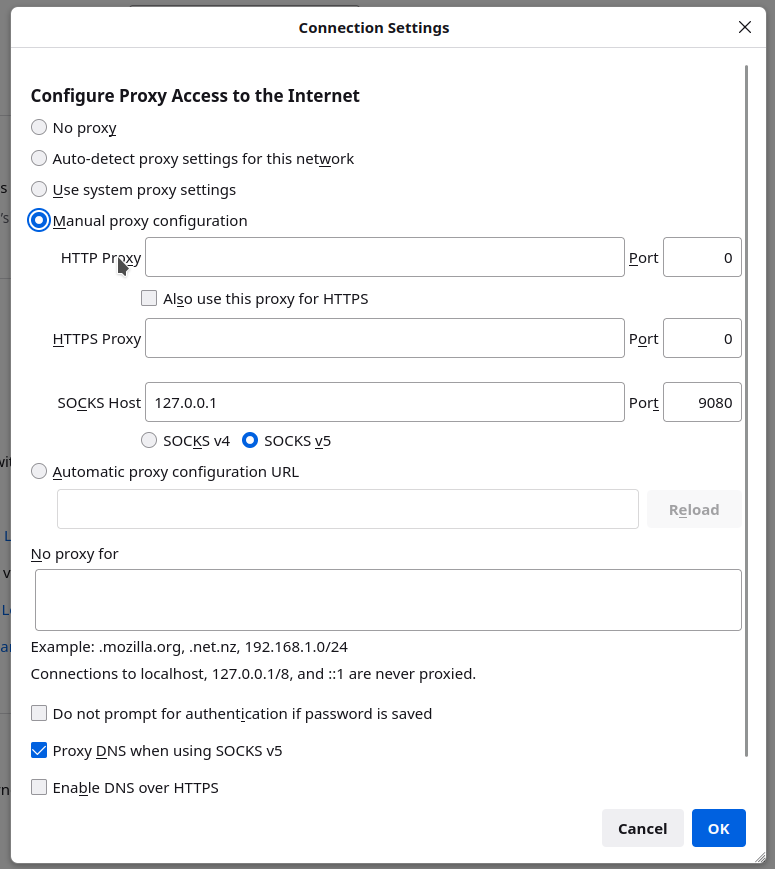
Then the user can open the URL https://jupyterhub.idris.fr directly on
the browser of his local workstation and problem with CORS blocking will
be gone.
Using such configuration globally (for all browser sessions) means that the entire traffic is passing through the gateway machine. Maybe this is not what users want. To avoid this and have the traffic of JupyterHub go through gateway machine and the rest of traffic normally through your workstation, users have multiple options like creating different browser profiles or using browser extensions.
More details on the dynamic port forwarding and SOCKS proxy can be obtained from this nice and short RedHat blog.