Tips and Tricks
Reload on connection loss
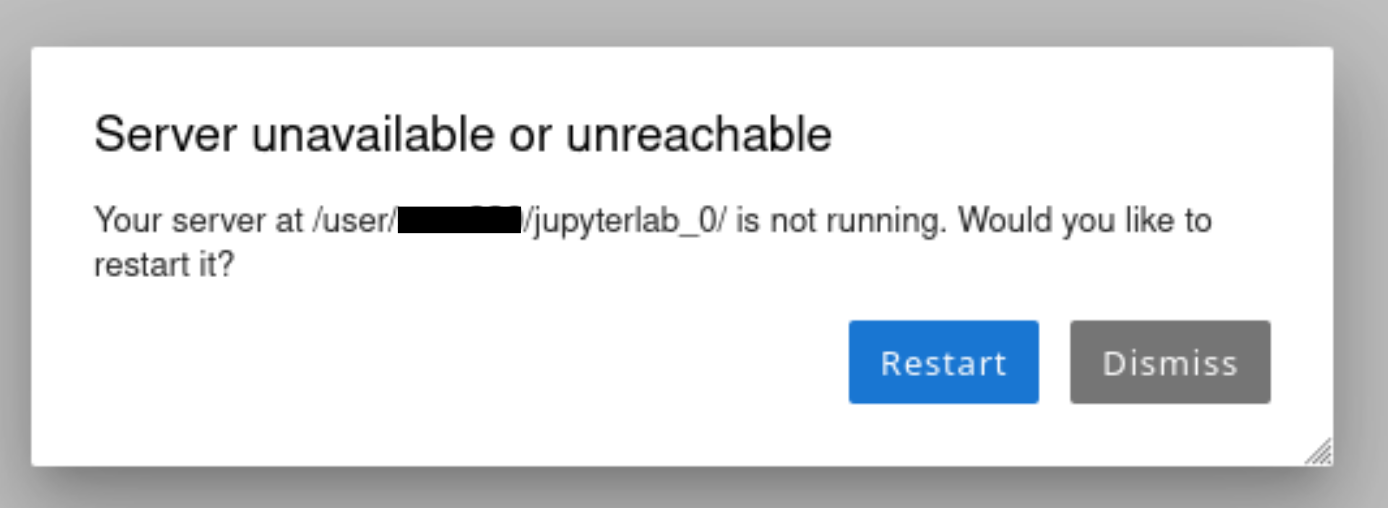
While JupyterLab server is supposedly running, "Server Not Running" means that your browser just lost connection. Hit the "Dismiss" button and reload the browser.
Accessing generic web server
Any web server started within the JupyterLab instance will be proxied to
the JupyterLab via Jupyter server proxy. Thus, if user launches a web
server on port 12345, this webserver can be accessed at the URL end
point
https://jupyterhub.idris.fr/user/<username>/<jupyterlab_name>/proxy/12345/.
However if the we server does not support proxing, it might not work
properly.
The trailing slash after the port number in the URL is important and usually users tend to forget it.
Server logs
Whenever user encounters an issue with the server instance, the first
place to look for the problem is in the spawner logs that can be found
at $WORK/jupyter_spawner_logs/slurm-spawner-$SLURM_JOB_ID.log for
SLURM spawner and
$WORK/jupyter_spawner_logs/login-node-spawner-$JOB_ID.out for servers
spawned on Login node. JupyterLab is always launched in debug mode so it
will create quite verbose output where each event is logged.
Usage of shells
Note that Jean Zay officially supports only bash. If user wishes to
use other shells like zsh, etc., we recommend them to use them only
for interactive sessions. Using such shells by default for all types of
sessions can have undesired consequences while launching JupyterLab
servers via JupyterHub. Users can ensure that they use custom shells
only for interactive sessions using
if [[ $- == *'i'* ]]; then
  # Activate your custom shell here
fi
in their bash profile.
Favorites
If user set folders and/or files as favorites in the file explorer to access them more easily. How to mark the folder/file as favorite and how to access them can be found at Documentation.