This page was translated by an AI (LLM) with a cursory human check and is awaiting full review.
Visualisation Nodes
Description
The configuration consists of 5 scalar-type nodes with the following characteristics:
- 2 Intel Cascade Lake 6248 processors (20 cores at 2.5 GHz), i.e. 40 cores per node
- 192 GB of memory per node
- 1 NVIDIA Quatro P6000 GPU
Usage
It is preferable to use these visualisation nodes with software capable of using the available GPU, such as VisIt or ParaView, and to reserve the pre/post-processing or front-end nodes for software such as Ferret or NcView.
For interactive use, you must use the script
idrvnc-alloc from one of Jean Zay's front-end nodes to
reserve resources in terms of time (1 hour by default up to 4 hours)
and memory (10 cores, i.e. 40 GB of memory) and to use the graphics card with data compression between the visualisation server and your local machine using a client/server VNC connection.
This requires the installation of a VNC client on your local machine, such as TurboVNC.
For batch use, you can submit a Slurm job from a Jean Zay front-end node using a specific partition visu: this partition visu allows you to run a job on
one of Jean Zay's visualisation nodes jean-zay-visu, on which computing hours are not deducted from your allocation. By default, the execution time is 10 minutes and cannot exceed 4 hours (i.e. --time=HH:MM:SS ≤ 4:00:00).
Example of a batch job on a visualisation node
#!/bin/bash
#SBATCH --job-name=paraview_avec_pvbatch   # nom du job
#SBATCH --nodes=1                          # 1 nœud
#SBATCH --ntasks-per-node=1%               # 1 processus
#SBATCH --time=00:45:00                    # ici 45 mn, par défaut 10 mn, 4 heures maximum
#SBATCH --output=paraview_MHD%j.out
#SBATCH --error=paraview_MHD%j.err
##SBATCH --account <mon_projet>@cpu        # si besoin indiquer l'accounting CPU : <mon_projet> = echo $IDRPROJ
#SBATCH --partition=visu                   # pour execution sur un nœud de visualisation

cd ${SLURM_SUBMIT_DIR}                # on se place dans le répertoire de soumission
module purge                          # on nettoie les modules charges en interactif et herites par defaut

module load paraview/5.11.1           # chargement de la version de paraview permettant le offscreenrendering

set -x

srun --unbuffered pvbatch --force-offscreen-rendering script.py
Example of an idrvnc-alloc session
[login@jean-zay1: ~]$ idrvnc-alloc
salloc: Pending job allocation 633386
salloc: job 633386 queued and waiting for resources
salloc: job 633386 has been allocated resources
salloc: Granted job allocation 633386
salloc: Waiting for resource configuration
salloc: Nodes jean-zay-visu1 are ready for job
INFO 2020-11-03 17:15:10,376 Starting VNC server. Please wait...:
INFO 2020-11-03 17:15:10,502 --Launching VNC server. Please wait before attempting to connect...
INFO 2020-11-03 17:15:15,509 --VNC server launched. Please connect.
URL to connect: jean-zay-visu1.idris.fr:20
Password VNC:   xxxxxxxxxxxxxxxxxxxxxxxxxxxxxxxx
Then, you launch your local VNC client and in the window that opens, you enter the visualisation node number and the port number using the second-to-last line:
URL to connect: jean-zay-visu1.idris.fr:20
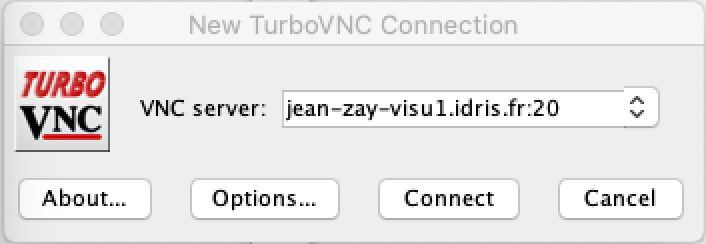
You click on connect and then on the next window:
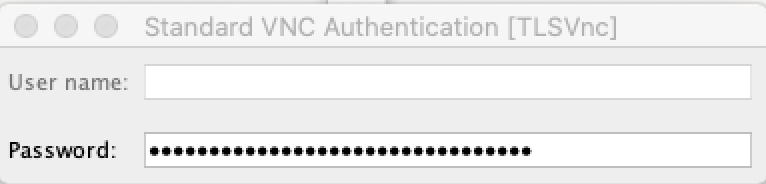
You enter the password displayed on the last line:
Password VNC: xxxxxxxxxxxxxxxxxxxxxxxxxxxxxxxx
This will open a window of the visualisation node on your local machine:
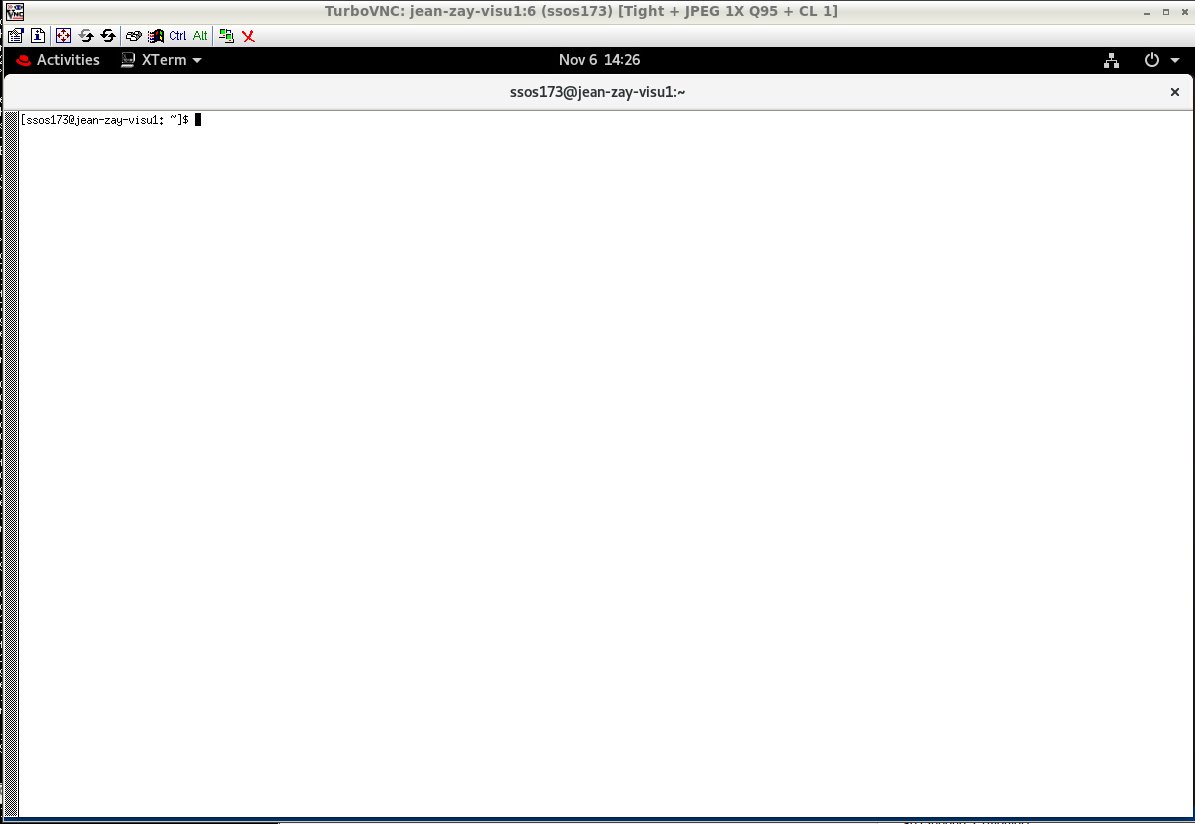
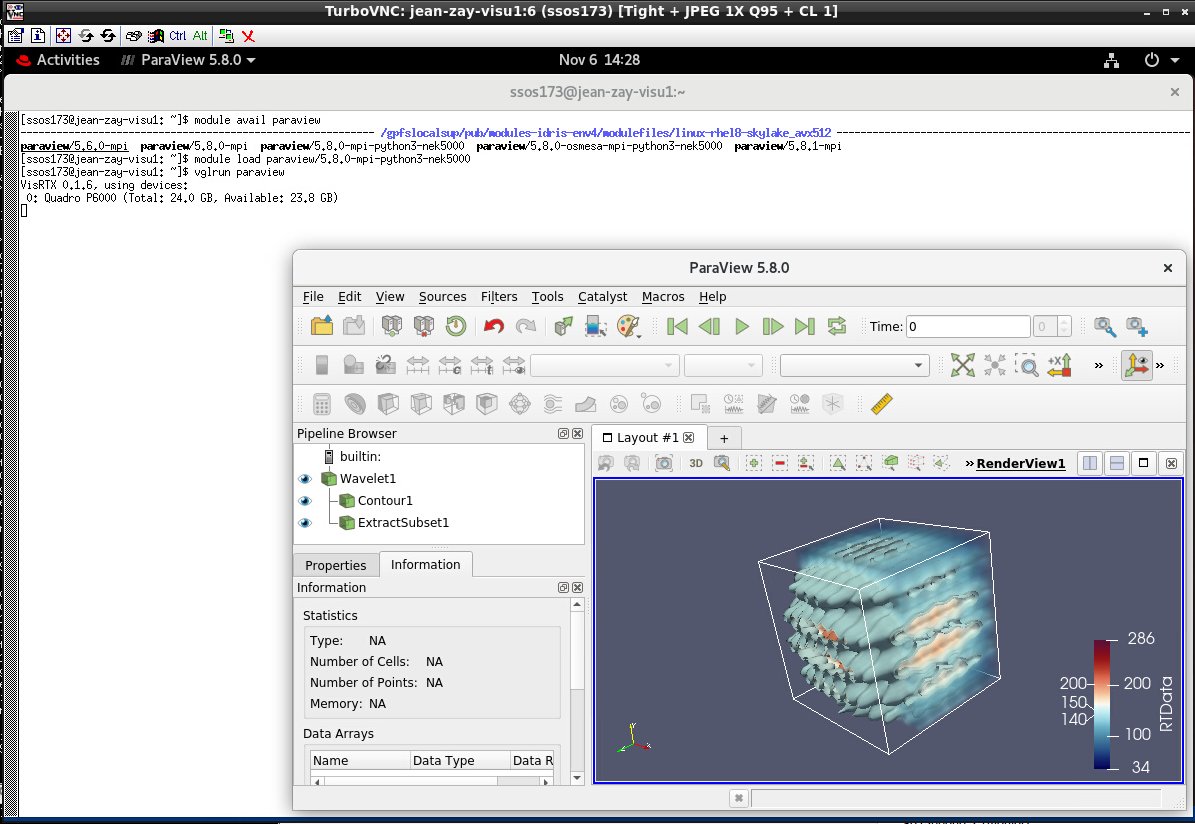
For example, we will search for the available versions of ParaView and choose the binary version that is capable of reading all possible file types:

And we will launch ParaView with vglrun (for graphical software using OpenGL libraries):
Access terms for the VNC service
Similar to the rules for accessing Jean Zay's front-end nodes, VNC access is subject to IP address filtering by the firewall. You can add a new IP via the Account Management Form if necessary.
VNC access via an intermediate machine
If you usually connect to Jean Zay via an intermediate machine, check if your VNC client natively supports the use of such a machine. If not, you can use port forwarding.
If the address returned by the command idrvnc-alloc is
jean-zay-visuX.idris.fr:P,
the port forwarding is started using the following command:
ssh -N -f -L 5900+P:jean-zay-visuX.idris.fr:5900+P login_machine_proxy@machine_proxy
For example, if the address returned by idrvnc-alloc is
jean-zay-visu2.idris.fr:9,
then the command line to use to start the forwarding is:
ssh -N -f -L 5909:jean-zay-visu2.idris.fr:5909 login_machine_proxy@machine_proxy
The parameters login_machine_proxy and machine_proxy should be
replaced by your username on the intermediate machine and its address. The options -N -f allow you to start the port forwarding without starting an interactive session on the intermediate machine.
Once the port forwarding is active, you can connect using localhost:P (localhost:9 for our example above) in your VNC client.
VNC access via VPN
If you use a VPN to connect to Jean Zay but the connection via the VNC client does not work, contact your IT team to confirm that the VPN is configured so that traffic to the IDRIS VNC servers is routed via the VPN.