This page was translated by an AI (LLM) with a cursory human check and is awaiting full review.
Linaro DDT
Description
DDT is a graphical parallel debugger that allows you to work on CPU applications (OpenMP, MPI), GPU applications (CUDA, OpenACC) and hybrid applications (MPI+CUDA, MPI+OpenACC).
IDRIS offers an "HPC Debugging" training course to learn how to debug your MPI and/or OpenMP code with DDT.
Linaro Forge also offers the MAP tool for profiling.
Compilation
Your program must be compiled with the -g option of the Intel and GNU compilers. This option tells the compiler to add various information to the executable that will allow debuggers to display source code line numbers, variable names, etc.
For debugging CUDA codes, you need to add the -G option of the NVIDIA nvcc compiler to get the necessary information about the GPU kernels.
For more information, you can consult the detailed list of Intel compiler debugging options.
Usage
The Linaro Forge graphical interface is common for the DDT debugger and the MAP profiler. You can use the Linaro Forge graphical interface installed on Jean Zay or the one installed locally on your machine (called Linaro Forge Remote Client).
Linaro Forge GUI on Jean Zay
Access to the DDT debugger installed on Jean Zay is done via the module command:
module load linaro-forge
You will also find modules containing older versions under the name arm-forge.
The graphical interface of DDT can only be used on the front-end nodes of Jean Zay. Moreover, its use requires that your SSH connection allows XWindows graphical display, for example with the -X option of ssh:ssh -X <votre_login>@jean-zay.idris.fr.
Once DDT is launched with the following command,
ddt&
a window like this should appear on your screen:
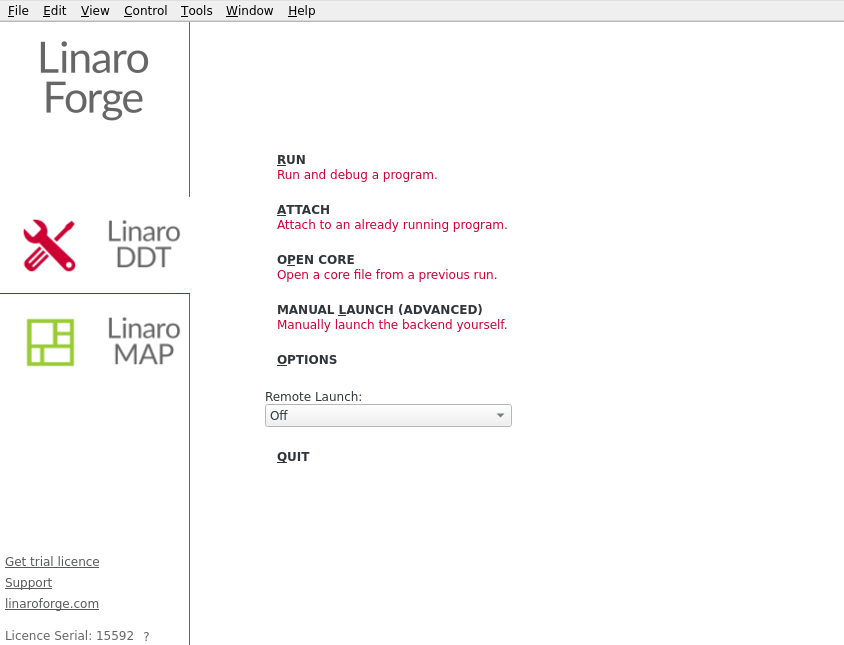
Linaro Forge GUI installed locally (Linaro Forge Remote Client)
Alternatively, it is possible to use Linaro Forge Remote Client installed locally on your machine. This avoids Xwindows graphical display over the SSH connection and thus offers better interface response times if your network is not performing well.
Linaro Forge Remote Client can be downloaded for free from the Linaro Forge website.
The version of the Remote Client must match the version of the Linaro Forge package installed on Jean Zay. The version number is indicated by the command ddt -v:
$ module load linaro-forge
$ ddt -v
Linaro DDT
Part of Linaro Forge.
Copyright (c) March 2023 - Linaro Limited. All rights reserved.

Version: X.Y.Z
On the first launch of Linaro Forge Remote Client, you need to establish a connection to Jean Zay via Remote Launch > Configure > Add.
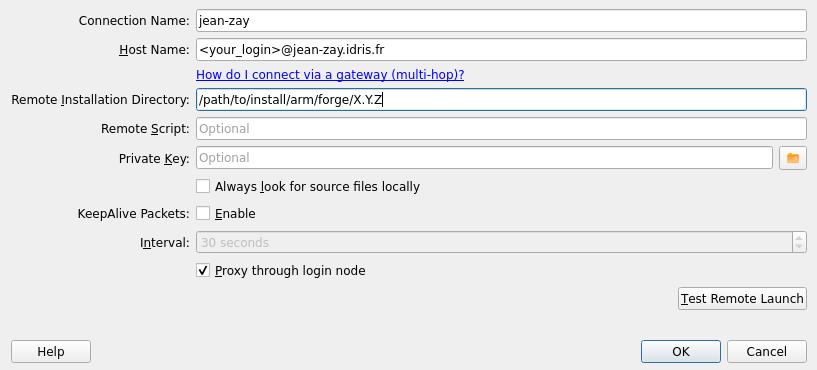
Connection Name: a name you choose to identify this connection;Host Name: your Jean Zay identifier followed by the machine address;Remote Installation Directory: the installation directory of Linaro Forge on Jean Zay. To find this path, you can run the commandmodule display linaro-forgeand retrieve the path added to thePATH(without the/binsuffix):prepend-path PATH /path/to/install/arm/forge/X.Y.Z/bin^------------------------------^
For more details on Linaro Forge Remote Client, you can consult the section "1.5 Connecting to a remote system" of the Linaro Forge documentation.
Reverse Connect Mode
As the graphical interface of DDT cannot be executed on the compute nodes, we recommend using the Reverse Connect feature of DDT by following the two steps below:
-
Create or modify your submission script to use DDT in Reverse Connect mode:
intel_mpi_debug.slurm# Vos directives Slurm habituelles...# Chargement des modules habituels...# Ajout du module linaro-forge pour DDTmodule load linaro-forge# Echo des commandes lancéesset -x# Execution du code via DDT en mode Reverse Connect.ddt --connect srun ./exec_mpi_to_debugnoteIn some cases (for example, with codes that do not use the MPI library), it may be necessary to set the following environment variables in your script:
export ALLINEA_MPI_INIT=mainexport ALLINEA_HOLD_MPI_INIT=1or if they do not work:
export ALLINEA_STOP_AT_MAIN=1 -
Then, from your interactive session, launch the DDT graphical interface in the background (note the
&symbol at the end of theddt&command) and then, when the interface is displayed on your screen, submit your SLURM job:module load linaro-forgeddt& -
Submit your job:
sbatch intel_mpi_debug.slurmwarningWhen your job executes the
ddt --connect ...command, DDT will display a connection request that you must accept before clicking onRunto start the execution of your code. On your screen, the display should look like this: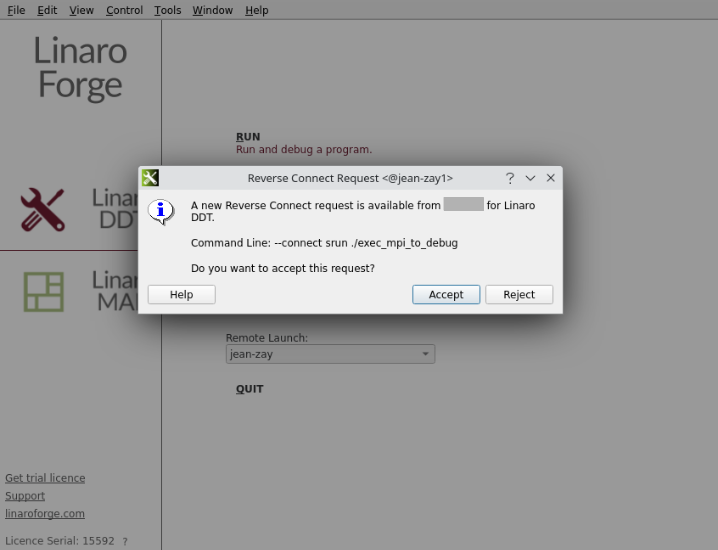
Specifics for GPU Codes
You may encounter some difficulties debugging GPU codes written using high-level programming models such as OpenACC.
To launch DDT on GPU codes, the ALLINEA_FORCE_CUDA_VERSION variable must be set according to the CUDA version used (see the output of the module list command to find out this version if needed).
For example:
$ module load cuda/12.2.0
$ module list
Currently Loaded Modulefiles:
 1) cuda/12.2.0
$ export ALLINEA_FORCE_CUDA_VERSION=12.2
$ ddt&
After DDT has connected to your SLURM job, make sure that CUDA debugging is enabled before starting the code execution. Note that if you wish, memory debugging can also be enabled (as shown below).
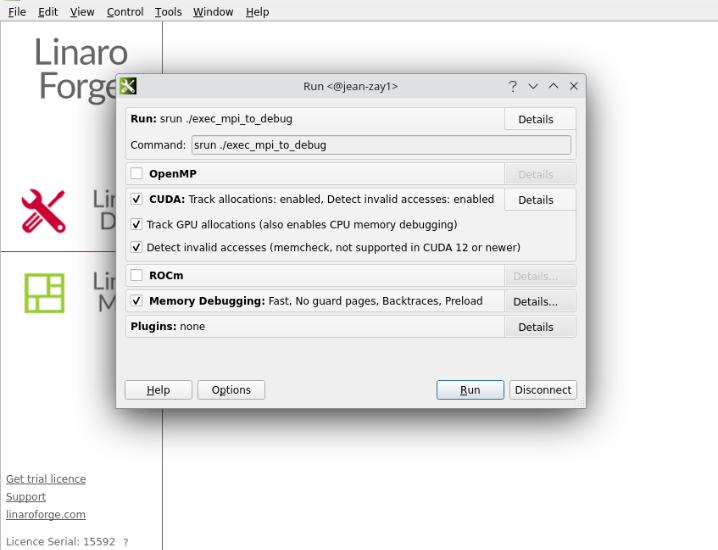
By default, DDT will stop at the launch of each kernel executed on the GPU. This behaviour can be changed in the Control > Default Breakpoints menu.
Documentation
The DDT documentation is available on the Linaro Forge website: https://www.linaroforge.com/download-documentation
Licence
IDRIS has a licence with a total of 8196 tokens for the two Linaro DDT and MAP products; their use requires one token per MPI process.