This page was translated by an AI (LLM) with a cursory human check and is awaiting full review.
Linaro MAP
MAP is a graphical performance analysis tool for parallel CPU applications (OpenMP, MPI) or GPU applications (CUDA C/C++/Fortran, OpenACC) and hybrid applications (MPI+CUDA/OpenACC).
We invite you to consult the best practices for code profiling for general advice on performance analysis on Jean Zay.
Linaro Forge also offers the DDT tool for debugging.
Compilation
Your program must be compiled with the options -g -O3 of the Intel and GNU compilers or -gopt of the NVIDIA compilers. These options instruct the compiler to add various information to the executable that will allow displaying the source code line numbers, variable names, etc., while maintaining a high level of optimisation.
For more information, you can consult the detailed list of Intel compiler debugging options.
Usage
The Linaro Forge graphical interface is common to the DDT debugger and the MAP profiler. You can use the Linaro Forge graphical interface installed on Jean Zay or the one installed locally on your machine (called Linaro Forge Remote Client).
Linaro Forge GUI on Jean Zay
Access to the Linaro Forge graphical interface installed on Jean Zay is done via the command:
$ module load linaro-forge
You will also find modules containing older versions under the name arm-forge.
The Linaro Forge graphical interface can only be used on the front-end nodes of Jean Zay. Moreover, its use requires that your connection allows XWindows graphical display (for example with the option -X of the command ssh).
Once MAP is launched with the following command:
map&
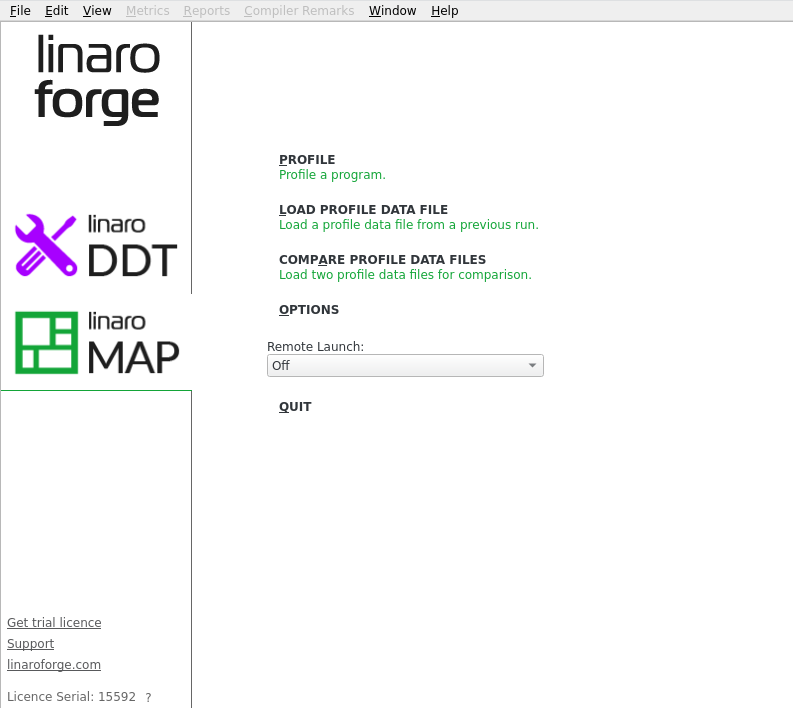
a window like this should appear on your screen.
Linaro Forge GUI installed locally (Linaro Forge Remote Client)
Alternatively, it is possible to use the Linaro Forge Remote Client graphical interface installed locally on your machine. This avoids Xwindows graphical display over the SSH connection and thus offers better interface response times if your network is not performing well.
Linaro Forge Remote Client can be downloaded for free from the Linaro Forge website.
The version of the Remote Client must match the version of the Linaro Forge package installed on Jean Zay. The version number is indicated by the command map -v:
$ module load linaro-forge
$ map -v
Linaro MAP
Part of Linaro Forge.
Copyright (c) 2023-2026 Linaro Limited. All rights reserved.

Version: X.Y.Z
On the first launch of Linaro Forge Remote Client, a connection to Jean Zay must be established via Remote Launch > Configure > Add.
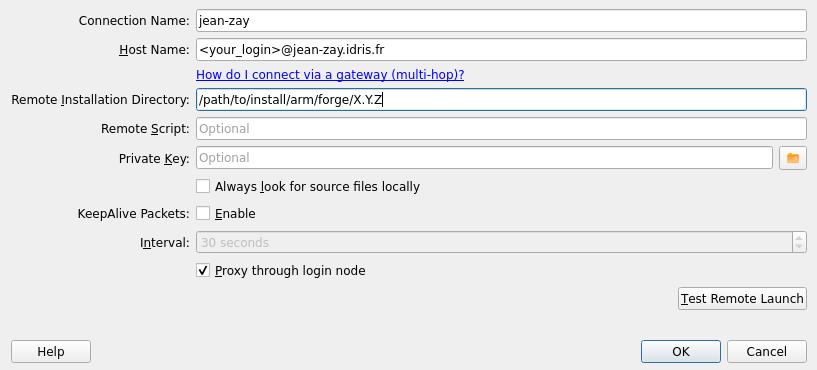
Connection Name: a name you choose to identify this connection;Host Name: your Jean Zay identifier followed by the machine address;Remote Installation Directory: the Linaro Forge installation directory on Jean Zay. To find this path, you can run the commandmodule display linaro-forgeand retrieve the path added to thePATH(without the suffix/bin):prepend-path PATH /path/to/install/arm/forge/X.Y.Z/bin^------------------------------^
For more details on Linaro Forge Remote Client, you can consult the section "1.5 Connecting to a remote system" of the Linaro Forge documentation.
Profiling a code
There are two ways to profile a code with MAP:
- either by running the code on the command line in your Slurm job and visualising the results a posteriori thanks to the Linaro Forge graphical interface;
- or by running the code directly via the Linaro Forge graphical interface and the Reverse Connect feature.
Profiling a code on the command line
To profile your code on the command line, add the command map with the option --profile at the beginning of the execution line (before the command srun):
# Vos directives Slurm habituelles
...
# La ligne ci-dessous peut être décommentée pour passer en mode exclusif et disposer
# d'un accès complet aux compteurs matériels (cf. les bonnes pratiques pour le profilage)
##SBATCH --exclusive -C prof

# Chargement des modules habituels
...
# Ajout du module linaro-forge pour MAP
module load linaro-forge

# Echo des commandes lancées
set -x

# Evite une saturation du répertoire temporaire /tmp
export TMPDIR=$JOBSCRATCH

# Execution du code
map --profile srun ./exec_mpi_to_profile
After the code execution, a file .map will be generated in your execution directory.
If the execution is performed in the temporary directory JOBSCRATCH, the file .map will be automatically deleted. Therefore, it must be copied to another directory at the end of the job.
To view it, launch the graphical interface either locally on your machine or on Jean Zay, then click on Load Profile Data File and choose the file .map that has just been generated.
Profiling a code via the graphical interface
The second way to profile with MAP is to use its Reverse Connect feature by following the two steps below.
- Create or modify your submission script to use MAP in Reverse Connect mode (option
--connectof the commandmap):
#!/bin/bash
# Vos directives Slurm habituelles
...
# La ligne ci-dessous peut être décommentée pour passer en mode exclusif et disposer
# d'un accès complet aux compteurs matériels (cf. les bonnes pratiques pour le profilage)
##SBATCH --exclusive -C prof

# Chargement des modules habituels
module purge
module load ...

# Ajout du module linaro-forge pour MAP
module load linaro-forge

# echo des commandes lancées
set -x

# Evite une saturation du répertoire temporaire /tmp
export TMPDIR=$JOBSCRATCH

# exécution du code
map --connect srun ...
In some cases (for example, with codes that do not use the MPI library), it may be necessary to set the following environment variables in your script:
export ALLINEA_MPI_INIT=main
export ALLINEA_HOLD_MPI_INIT=1
or if they do not work:
export ALLINEA_STOP_AT_MAIN=1
- Then, from your interactive session on Jean Zay or on your local machine (Linaro Forge Remote Client), launch the MAP graphical interface (in the background in this example via the symbol
&at the end of the commandmap&), then when the interface is displayed on your screen, submit your Slurm job:
module load linaro-forge
map&
sbatch intel_mpi.slurm
When your job executes the command map --connect ..., MAP will display a connection request that you must accept before clicking on Run to start the execution of your code.
Documentation
The MAP documentation is available on the Linaro Forge website.
Licence
The IDRIS has a licence with a total of 8196 tokens for the two Linaro DDT and MAP products; their use requires one token per MPI process.