This page was translated by an AI (LLM) with a cursory human check and is awaiting full review.
The DARI website has evolved since this documentation was written, and some steps or screenshots may be outdated.
Creating a Dynamic Access (DA) File
This documentation describes the creation of a Dynamic Access (DA) file for AI or HPC communities.
If your total resource request across the three national centres is below the thresholds (500,000 CPU hours and 50,000 normalised GPU hours), you will be directed to a Dynamic Access (DA). If the request exceeds these thresholds, you will be directed to a Regular Access (RA).
For more details on the types of access, click here.
Creating the File
This process is carried out from your personal space on the eDARI portal.
You must first have opened a personal account on the eDARI website.
When you are on the eDARI portal homepage:
-
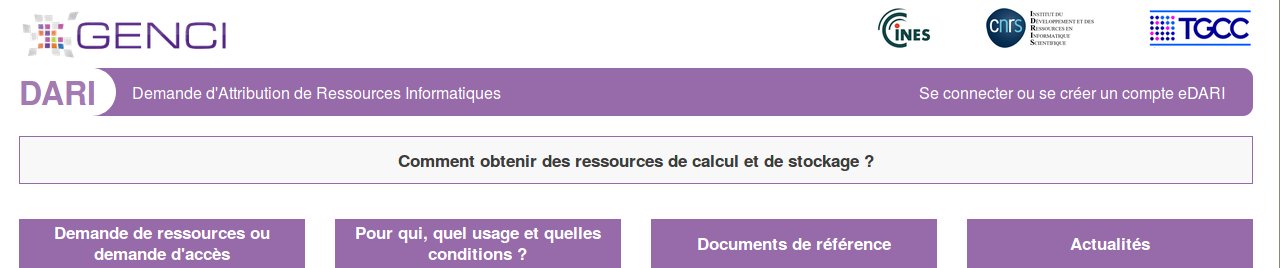
You must first log in via the link "Log in or create an eDARI account" (at the top right of the page):
-
This opens a new page where you choose the type of connection desired ("Log in with an eDARI account" or "Log in via the Education-Research Federation").
-
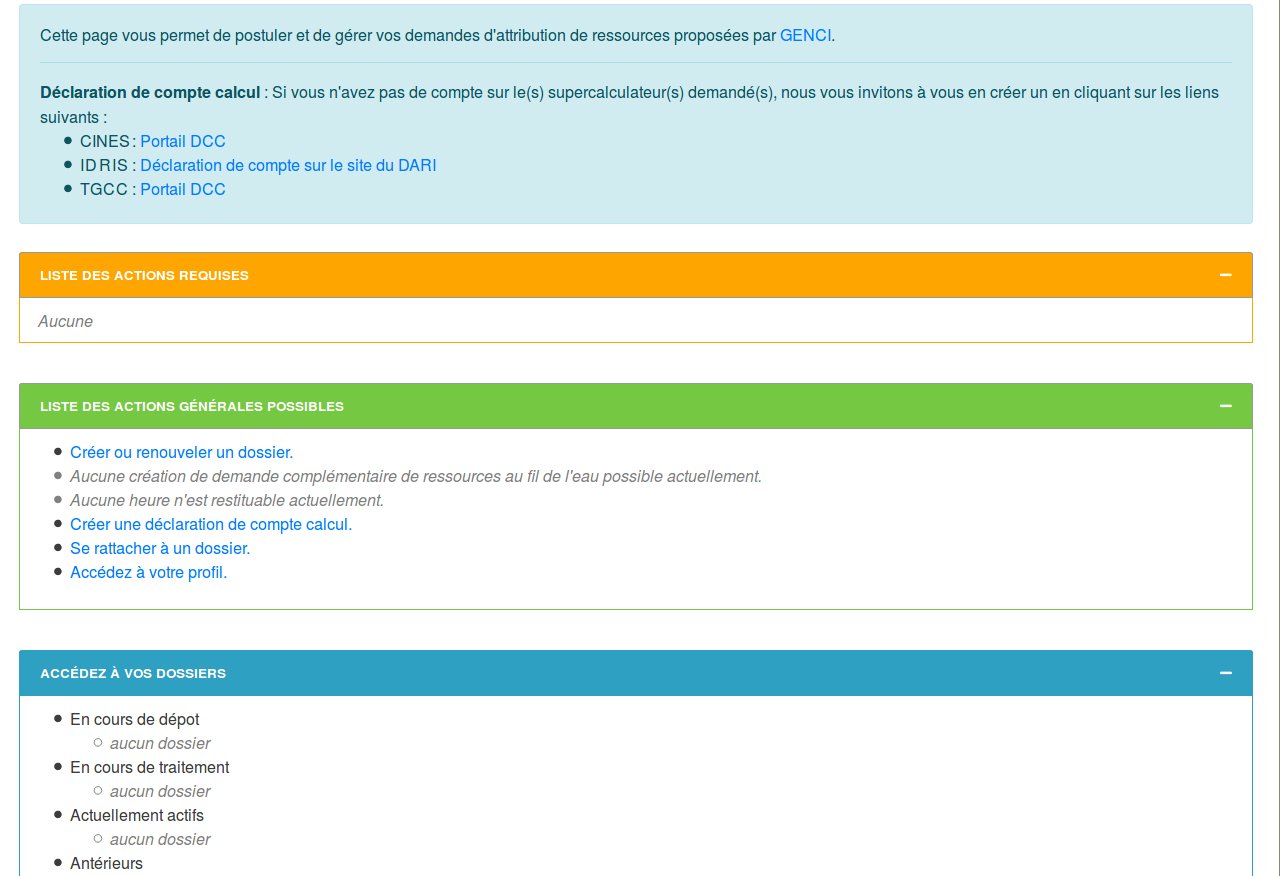
Once logged in to the eDARI portal, you access your personal space homepage:
-
Click on the link "Create or renew a file" in the green LIST OF GENERAL POSSIBLE ACTIONS box.
-
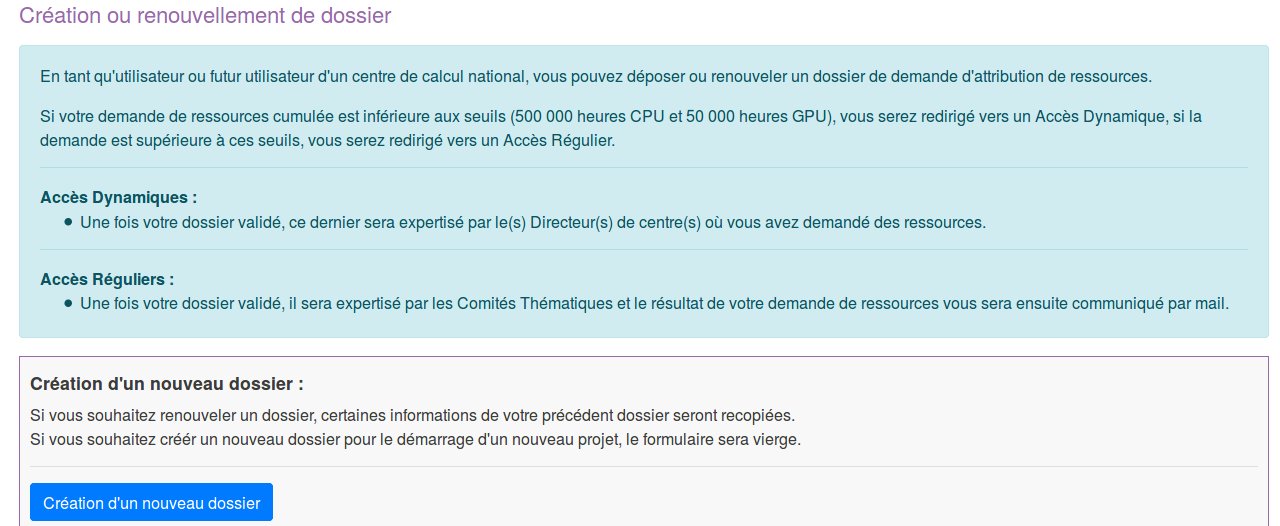
Then, on the page you have just opened, click on the blue button "Create a new file":
-
After reading and validating the page on the management of your personal data, click on the blue button "Send and proceed" to reach the first file entry page.
Entering the File
Project (page 1)
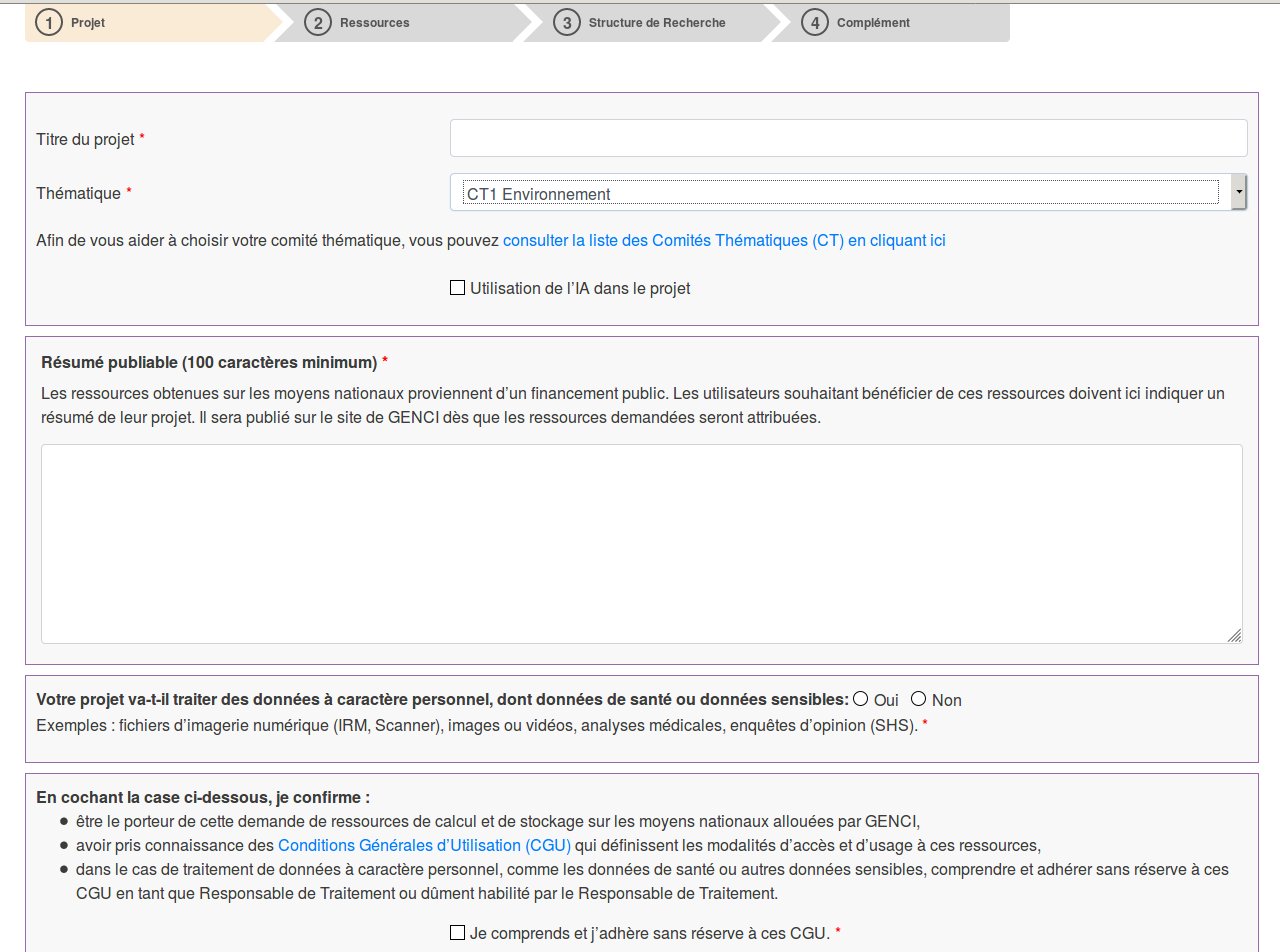
All fields in the titles followed by a red asterisk are mandatory. Make sure to describe your project well in the "Scientific description of the project" section to facilitate the review, especially if your hour request is significant.
Be careful not to choose the wrong thematic committee! This choice cannot be modified once all the information on this page has been saved.
If you process sensitive data (audio, video, health data, etc.), whether in the field of AI or HPC, please tick the "Yes" box in the "Will your project process personal data" box. In this case, after clicking the blue "Next" button, you will be redirected to a specific page where you will declare the data controller (this can be you or a designated person in your laboratory or research team). You will have the optional possibility to fill in a questionnaire on the planned processing of the data. We invite you to do so to speed up the investigation we will conduct with you.
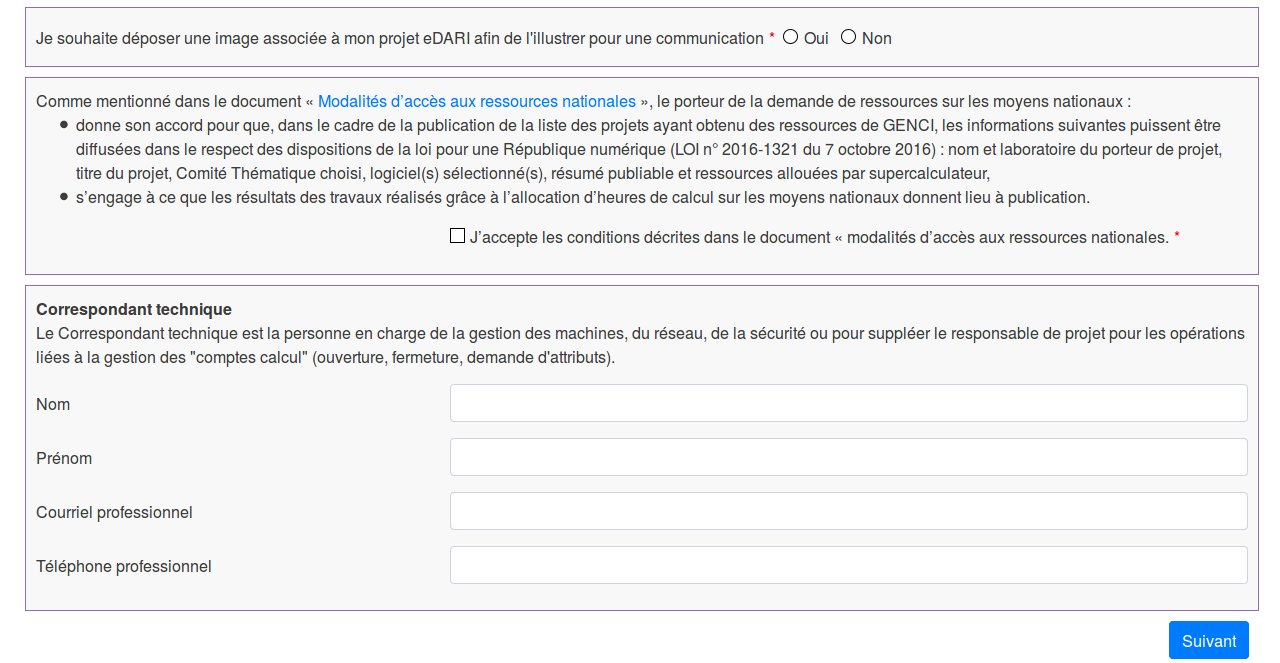
The "Upload an image" link is optional. It allows GENCI to associate an image with your file when publishing the list of projects benefiting from resources on the national facilities.
Note that the (optional) information relating to the technical contact is not automatically transferred to the IDRIS. To make this request to the IDRIS, please use the Account Management Form (section "Adding or removing a deputy on an existing project") but only after acceptance of your file and after acceptance of your computing account associated with this project.
Resources (page 2)
After filling in the requested information for your project, the second page will allow you to enter the necessary resources:

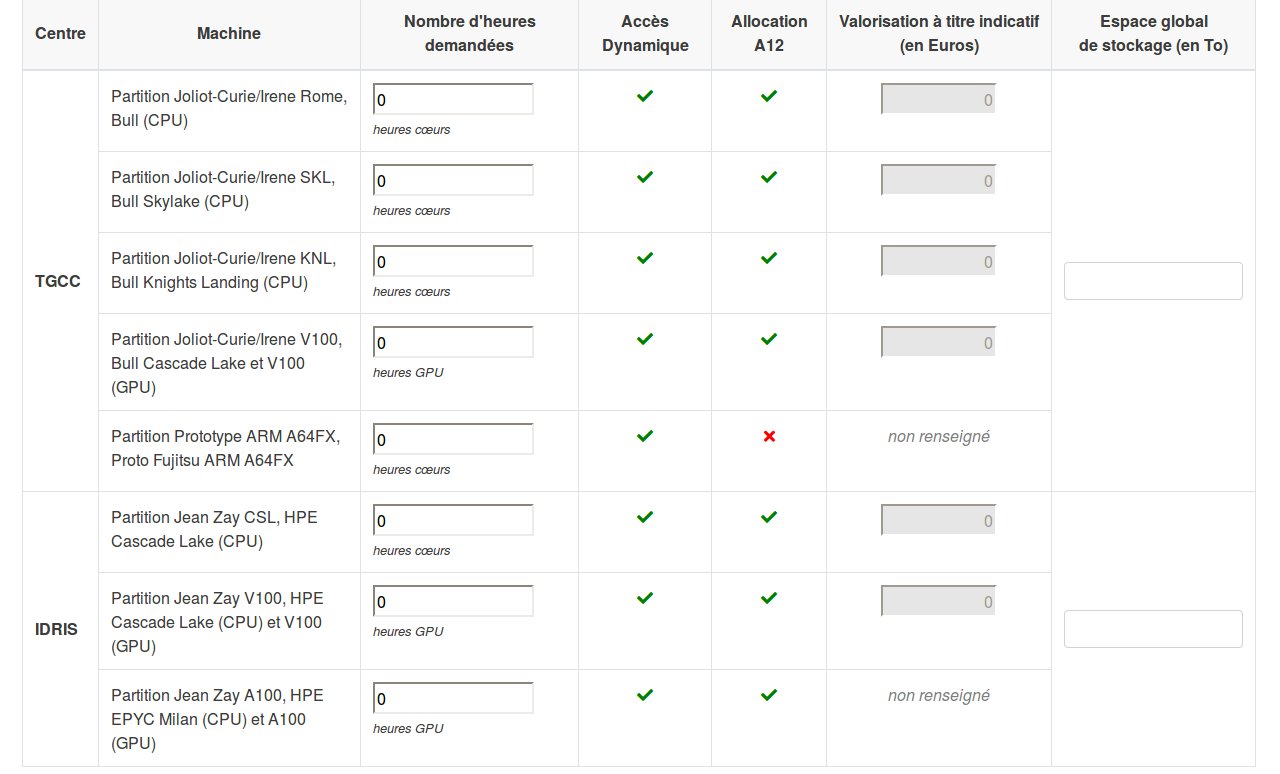
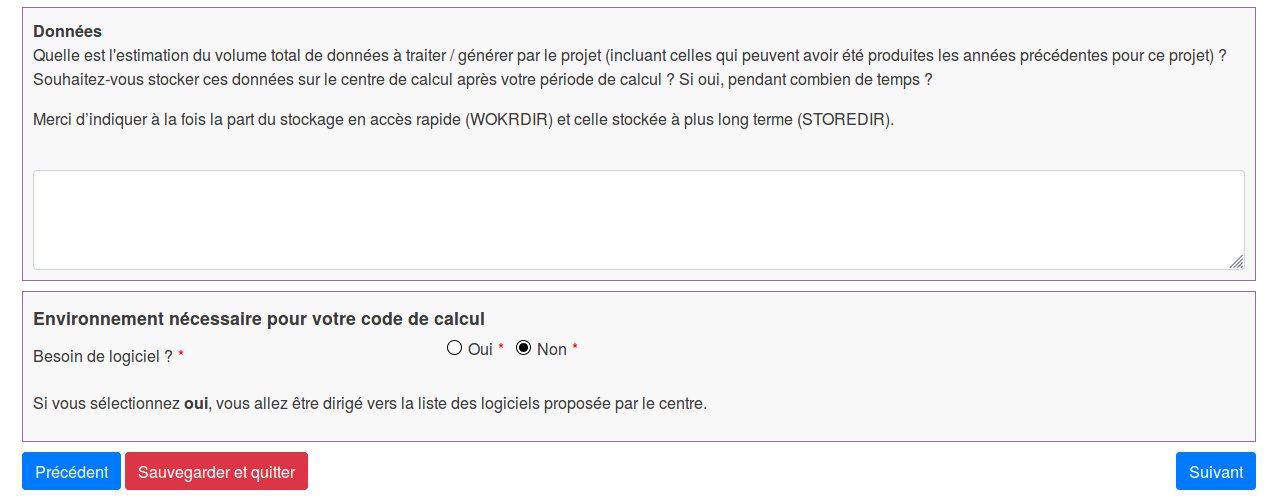
You can request hours in the three computing centres, but in this documentation, we will focus on the hours requested at the IDRIS.
Whether for the AI community or the HPC community, you can request both CPU hours and GPU hours. Our different partitions (CPU, V100, A100 and H100) are detailed in this documentation page.
On the right, you have a column "Global storage space (in TB)" in which you must enter your storage needs for the entire duration of the project. This information is mandatory.
The rest of the page allows you to provide information on the amount of data produced, whether this data needs to remain stored at the IDRIS, and your software needs.
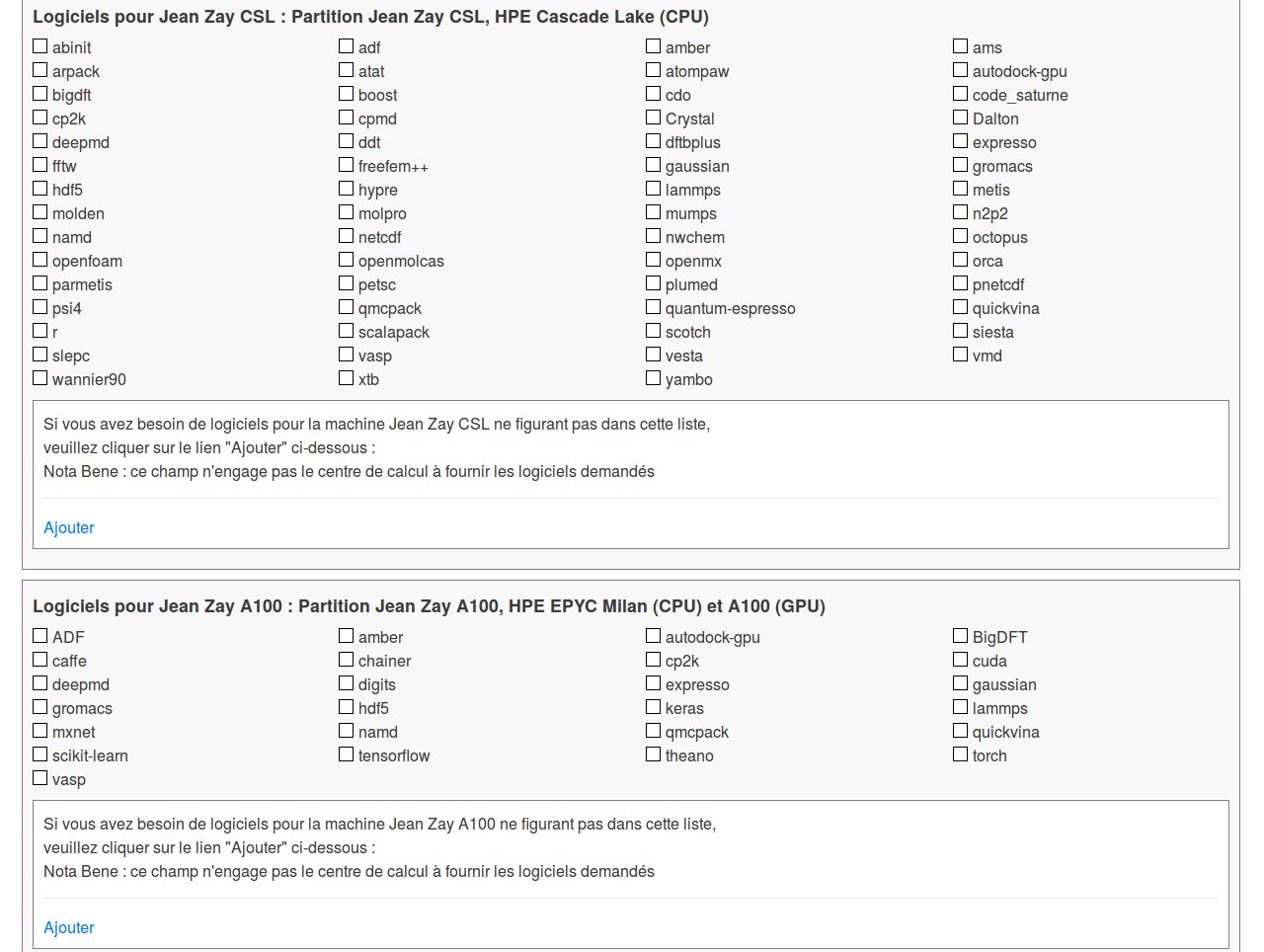
If you answer "Yes" to the question "Software needed?", you will be redirected to a specific page that dynamically lists the software available on the partitions you have requested. For example, on Jean Zay CSL (CPU) and Jean ZAY A100 (GPU):
Research Structure (page 3)
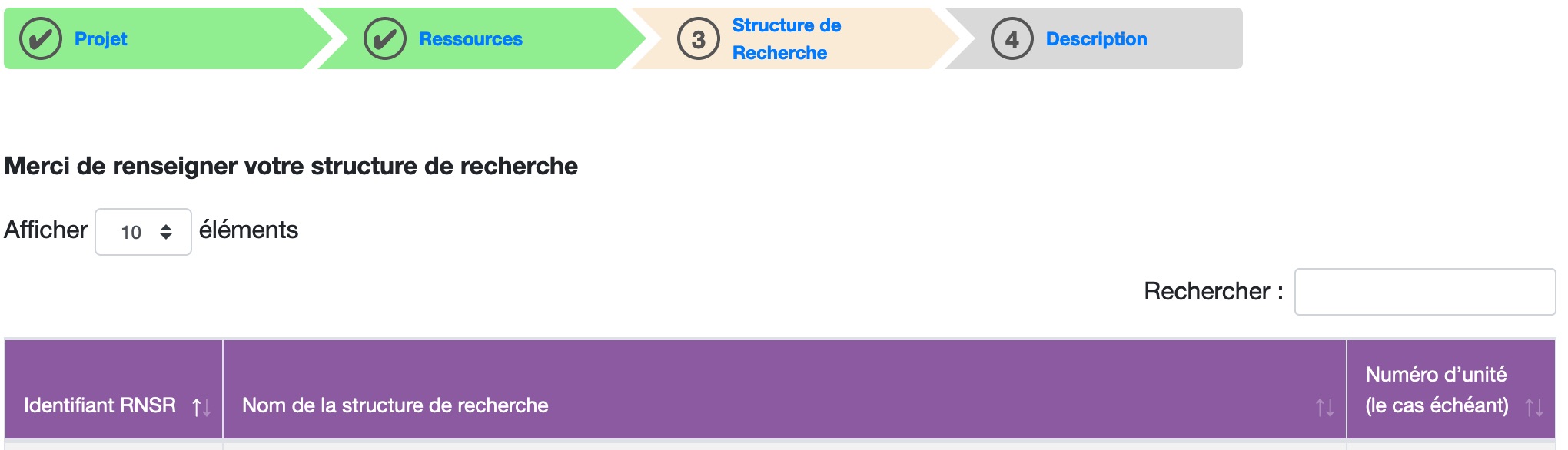
The research structure declaration interface is based on the National Directory of Research Structures (RNSR), which references thousands of public and private research structures in France. Enter the first letters of your laboratory, organisation or research structure in the "Search" field and a list of matches will be proposed. Click on the correct result to display a summary page of information about your research structure. You can modify, if necessary, the postal and telephone contact details. If your structure director is found, they will also appear at the bottom of the page but without the possibility of modification.
If your structure is not in the file or if you are part of a company, use the blue button "I cannot find my research structure" at the bottom of the page:

Description (page 4)
On the fourth and final page of the file entry, you will indicate:
- the number of CPU and/or GPU hours you think you will use over the allocation year;
- if you have the possibility to migrate your applications and environments to one (or more) supercomputer(s) of another centre in case of very high demand on the chosen supercomputer;
- how you plan to use the allocated computing hours (continuously over the year, periodically, etc.).
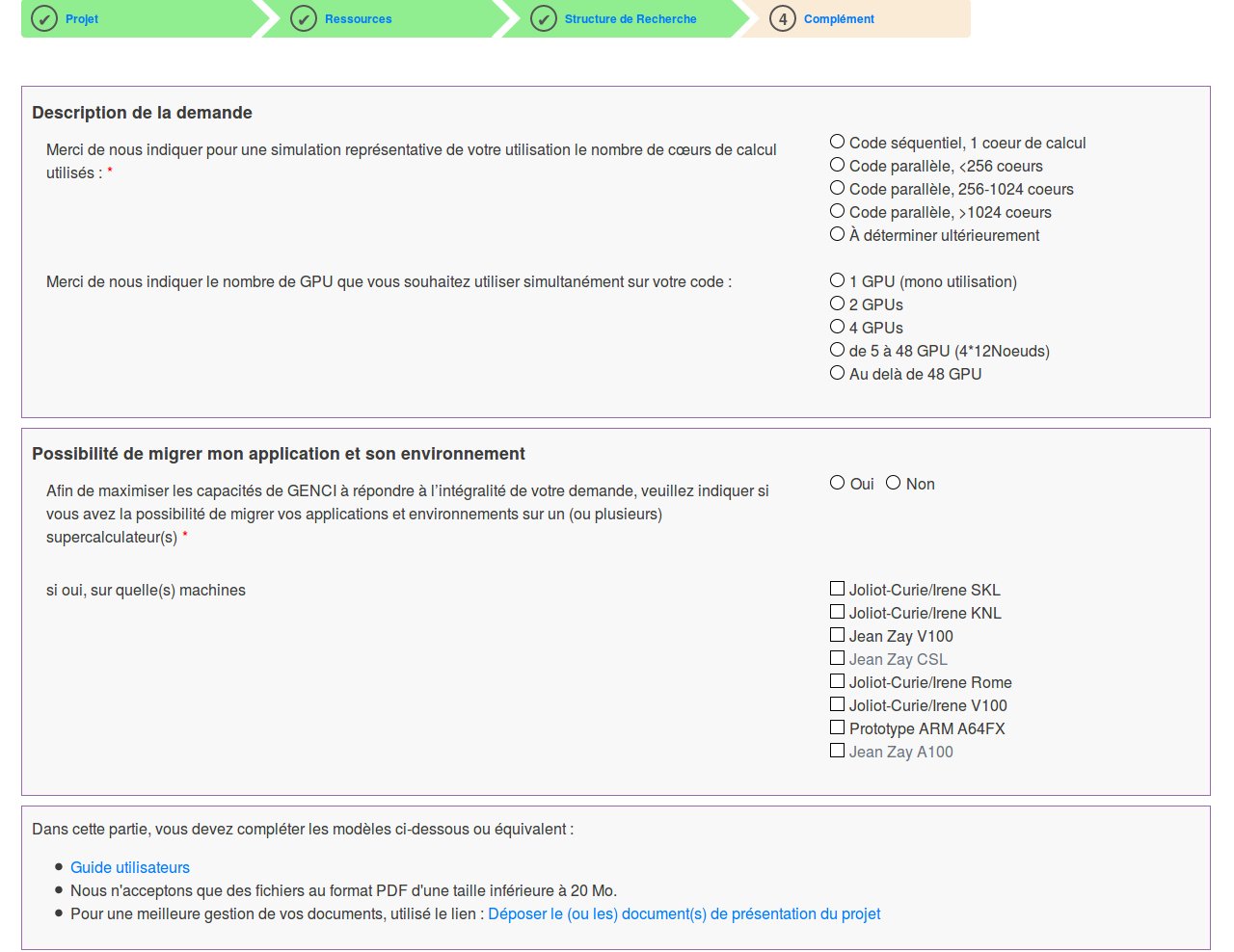
Then click on the blue "Finish" button to return to your personal space homepage, which will have changed dynamically.
Note that at this stage of the procedure, your file is not yet validated. Validation is mandatory for the request to be considered.
Final Validation
When your request is complete, you are redirected to your personal space homepage, where new information about your Dynamic Access file appears:
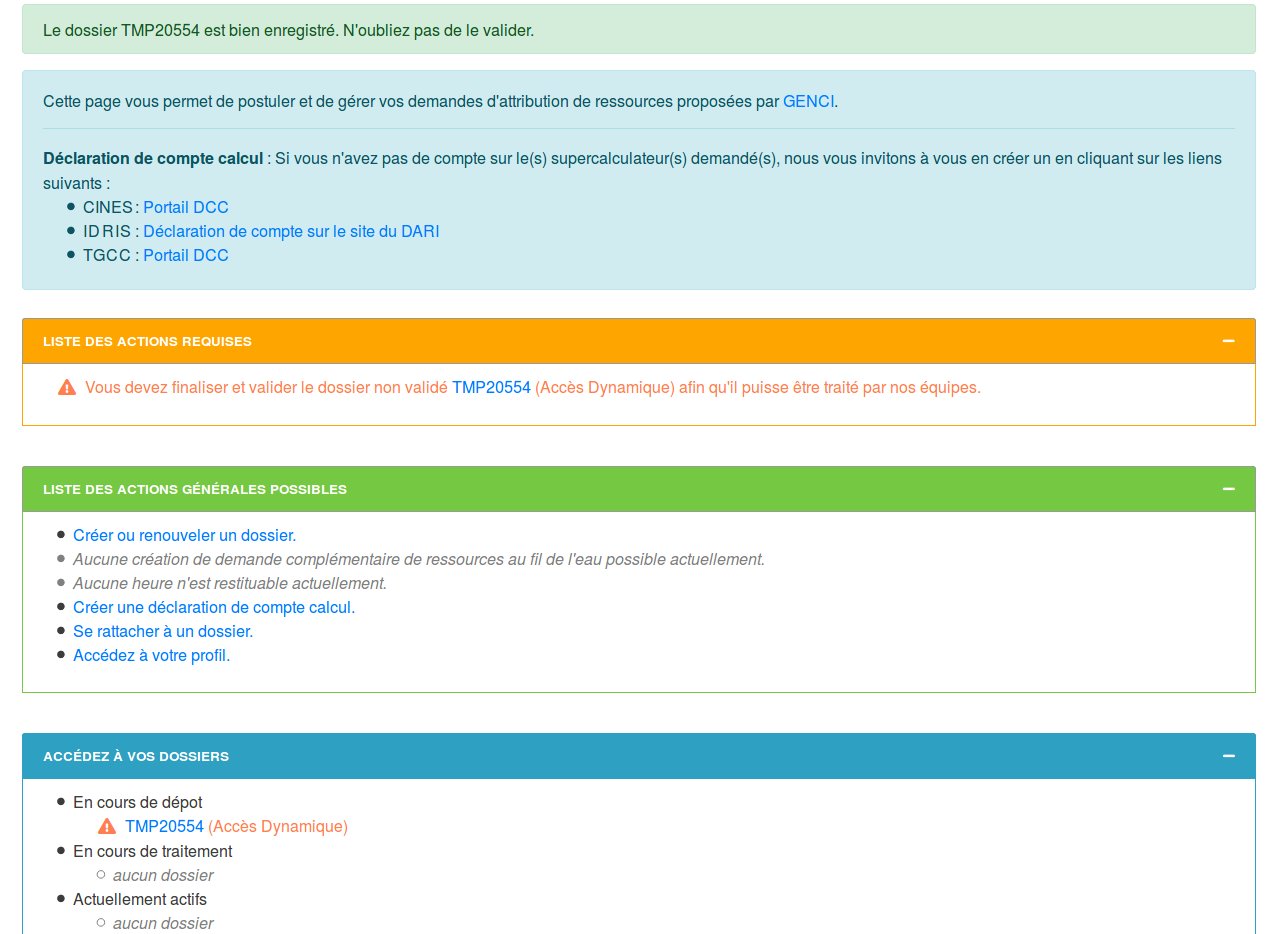
To definitively validate your allocation request, click on the temporary file number TMPXXXXX in the orange "LIST OF REQUIRED ACTIONS" box. This will open the following action menu:
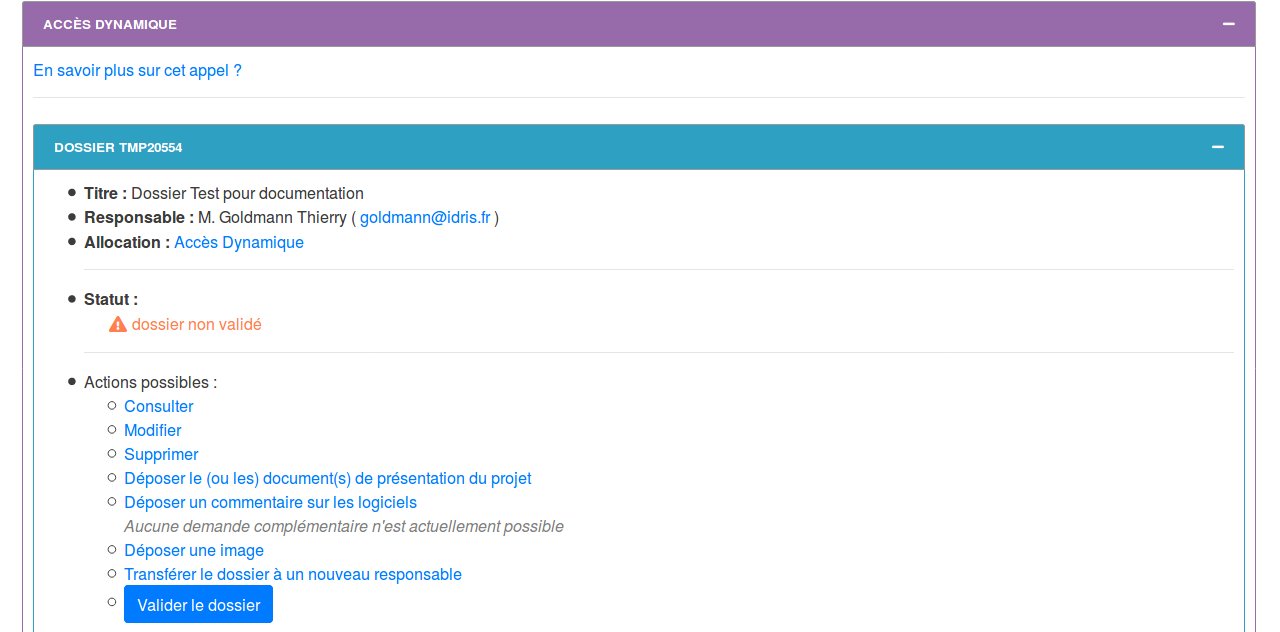
The title in the purple bar is "DYNAMIC ACCESS" because the hour request was below the thresholds of a Regular Access. You can view, modify (except for the thematic committee), or delete the file.
You can also upload optional explanatory documents (in PDF format only), add a comment on a software (you want a particular version or a version compiled with modifications made in your laboratory), or transfer the file to another manager.
If you have no further information or corrections to provide, click on the blue "Validate the file" button. This will dynamically display the following information at the top of your personal space on the eDARI portal:
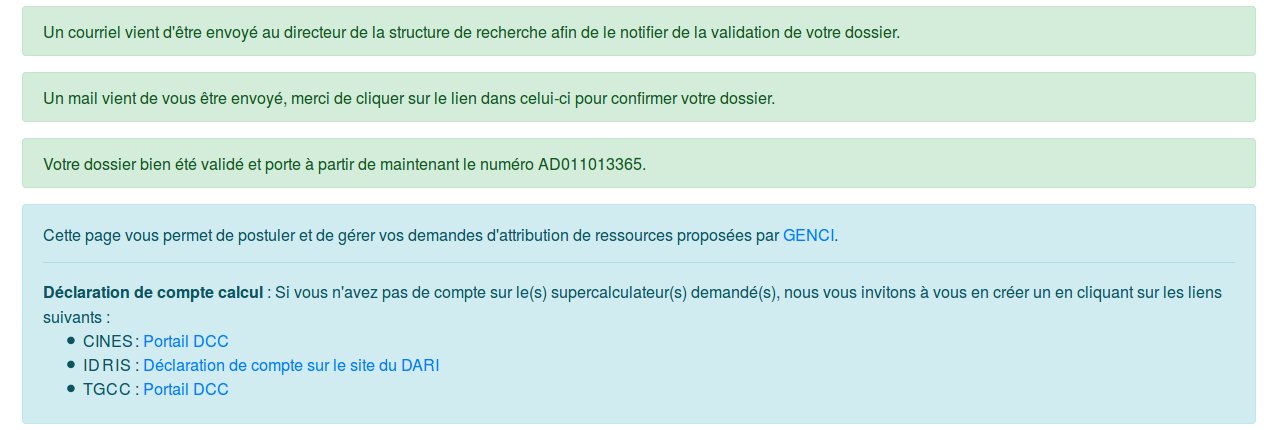
You will then find the final number of your file in the third light green box.
Attention:
-
The first two light green boxes will only appear if your structure director and yourself are part of the Education-Research Identity Federation (FER). You and your director will then receive an email containing a link that you must click to authenticate (this dispenses with depositing a manual signature) and finalise the procedure. Without this validation/signature, your file WILL NOT BE REVIEWED.
-
Otherwise, if your director and/or yourself are not part of the identity federation, only the last light green box indicating the dynamic access file number will appear.
In this case, you will see in the orange "LIST OF REQUIRED ACTIONS" box the mention "For your resource request to be considered, you must deposit the signed endorsement on the website for the file below:" and on the next line will appear the clickable file number with, in brackets, the precision "Dynamic Access" or "Allocation A..." (regular access):

By clicking on this number, a box will dynamically appear in a blue box at the bottom of your personal space with a summary of the status of your file indicating the date on which you validated the file and that the endorsement has not been validated by the IDRIS:
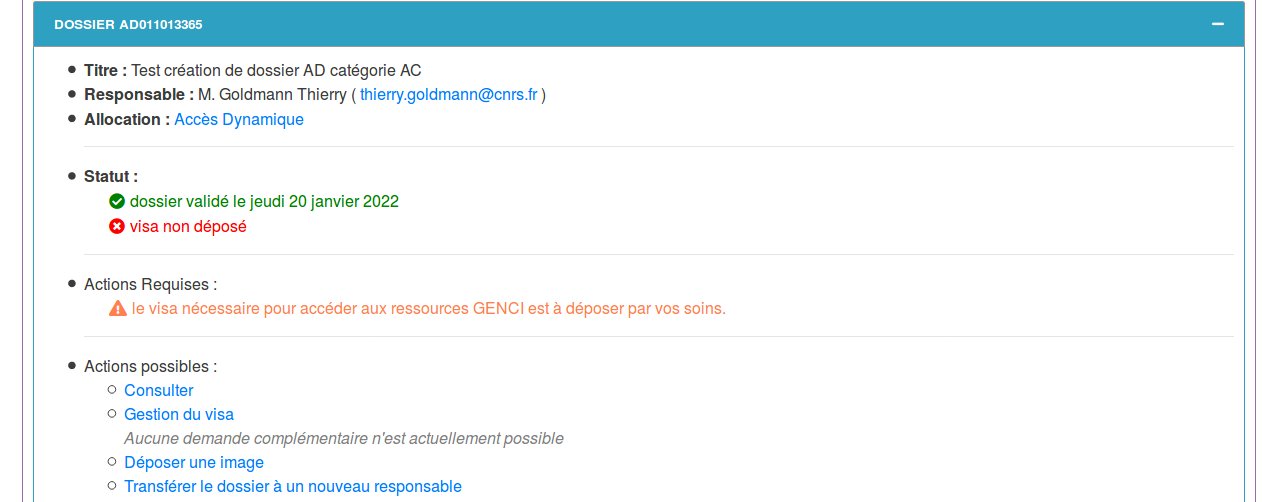
Then click on the "Endorsement Management" link and then on the "Download the endorsement in PDF format" link, which you will print, sign manually and possibly have signed manually by your structure director if this is indicated in the endorsement. Then scan the signed endorsement to have a digital version in PDF format.
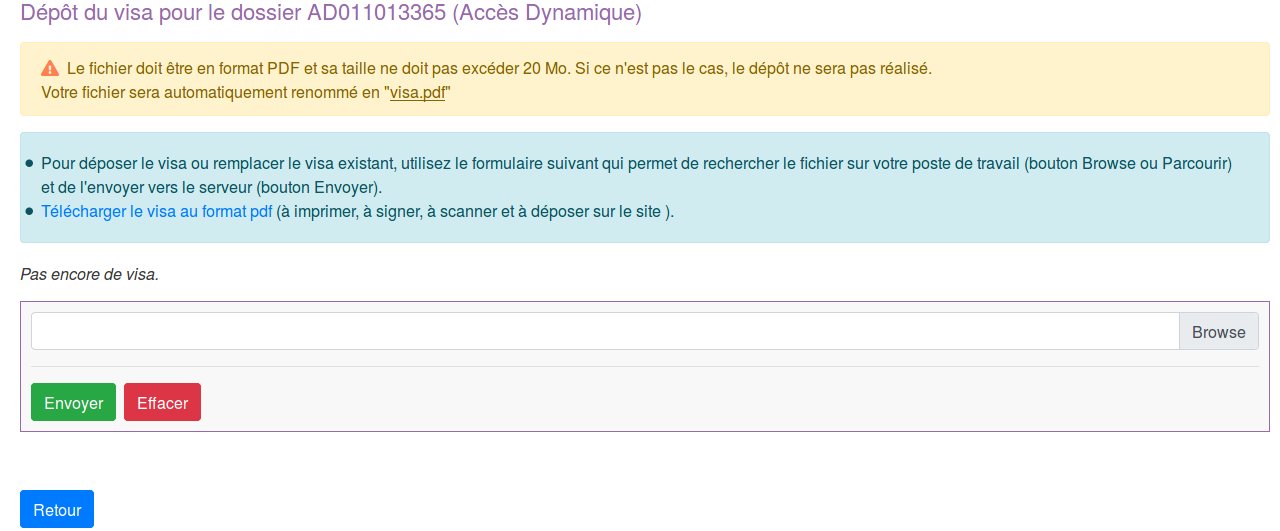
Deposit the endorsement in PDF format using the dialogue window with the "Browse" button. Without depositing this signed endorsement, your file WILL NOT BE REVIEWED by the IDRIS management. Once the endorsement is deposited, you will have the following information:
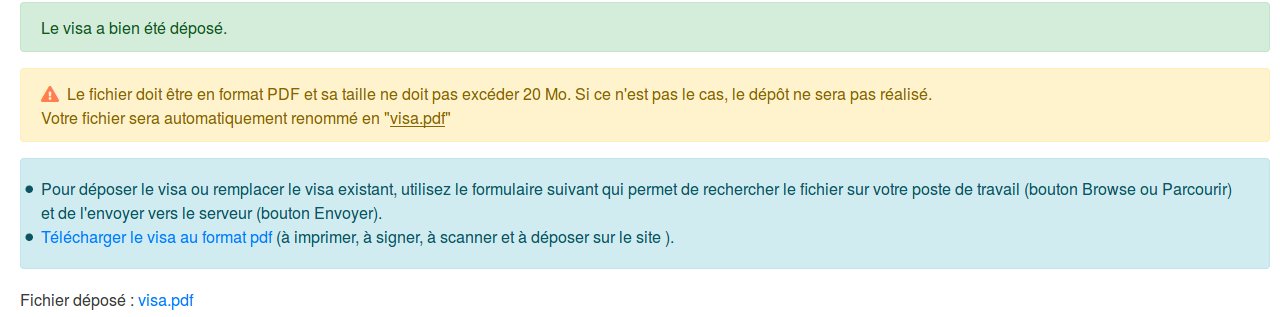
And higher up in your personal space, the mention that you have no further action to take on your side will be displayed:

If you click on your file number at the bottom of your personal space:
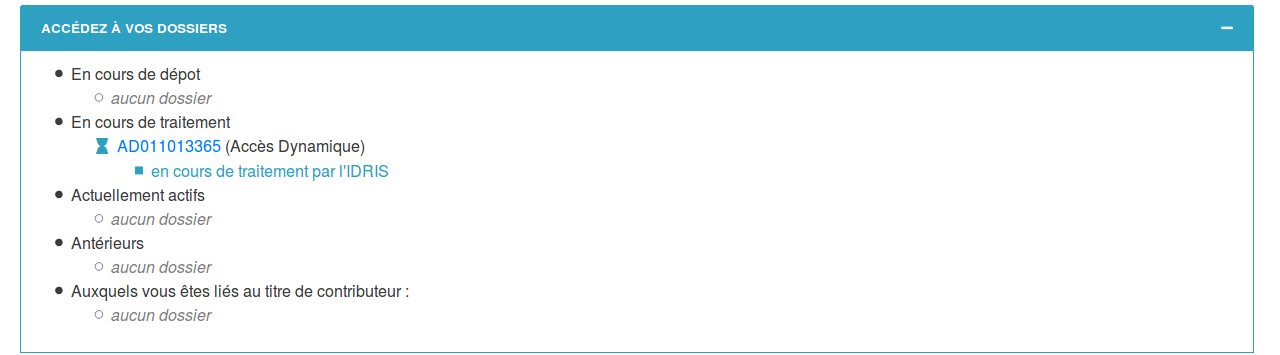
You will have confirmation that the endorsement is indeed deposited for your computing hour request.
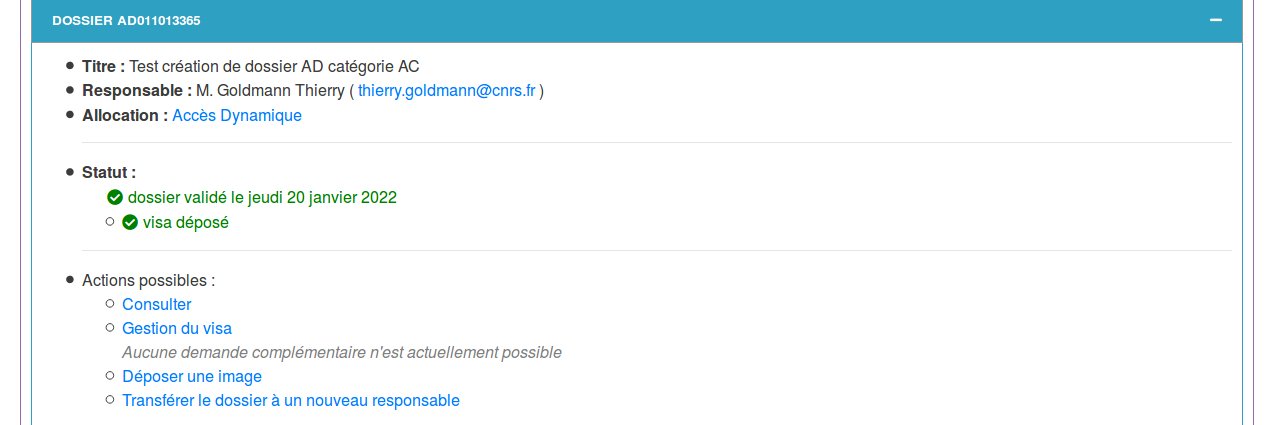
The IDRIS will then verify that the signatures are present and, if so, accept this endorsement. This will trigger the review procedure by the centre's management.
You can submit several dynamic access files.
The duration of a project is one year. During the last month of this period, you can renew your DA file. Depending on the cumulative volume of hours requested across the three centres upon renewal, you can renew the DA file as a DA file or renew the DA file as an RA file.
FAQ and Contacts
-
FAQ: do not hesitate to consult the eDari portal FAQ.
-
Contacts:
- For any problem related to the IDRIS computing account creation procedure, do not hesitate to contact us by email at gestutil@idris.fr.
- If you encounter a technical error related to the website's operation, send an email to the email address svp@cines.fr.