This page was translated by an AI (LLM) with a cursory human check and is awaiting full review.
The DARI website has evolved since this documentation was written, and some steps or screenshots may be outdated.
Opening an IDRIS computing account
If you do not already have an IDRIS computing account, you must submit a computing account declaration from your personal space on the eDARI portal to obtain one.
You must first open a personal account on the eDARI website.
Submitting a computing account declaration
When you are on the eDARI portal homepage, you must first log in via the "Log in or create an eDARI account" link (top right of the page):
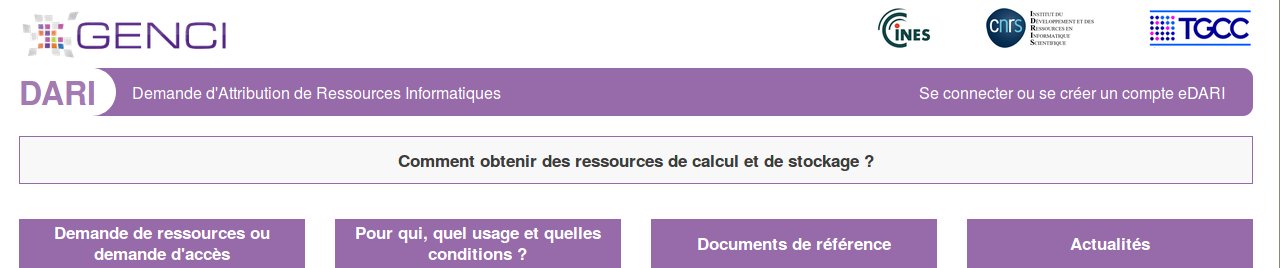
On the new page, choose the desired type of connection ("Log in via the Education-Research Federation" or "Log in with an eDARI account").
Once logged in to the eDARI portal, you will access the homepage of your personal space.
To request the creation of a computing account, click on the "Create a computing account declaration" link in the light green "LIST OF POSSIBLE GENERAL ACTIONS" box:

On the page you have just opened, after reading and validating the page on the management of your personal data, click on the blue "Send and proceed" button to reach the first page of the declaration form.
Filling in the declaration
User (page 1)
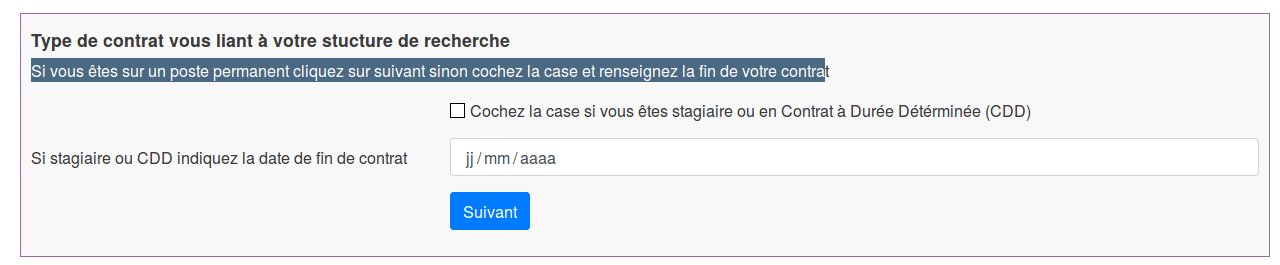
If you are on a permanent position, click directly on the blue "Next" button; otherwise, enter the requested information.
Research structure (page 2)
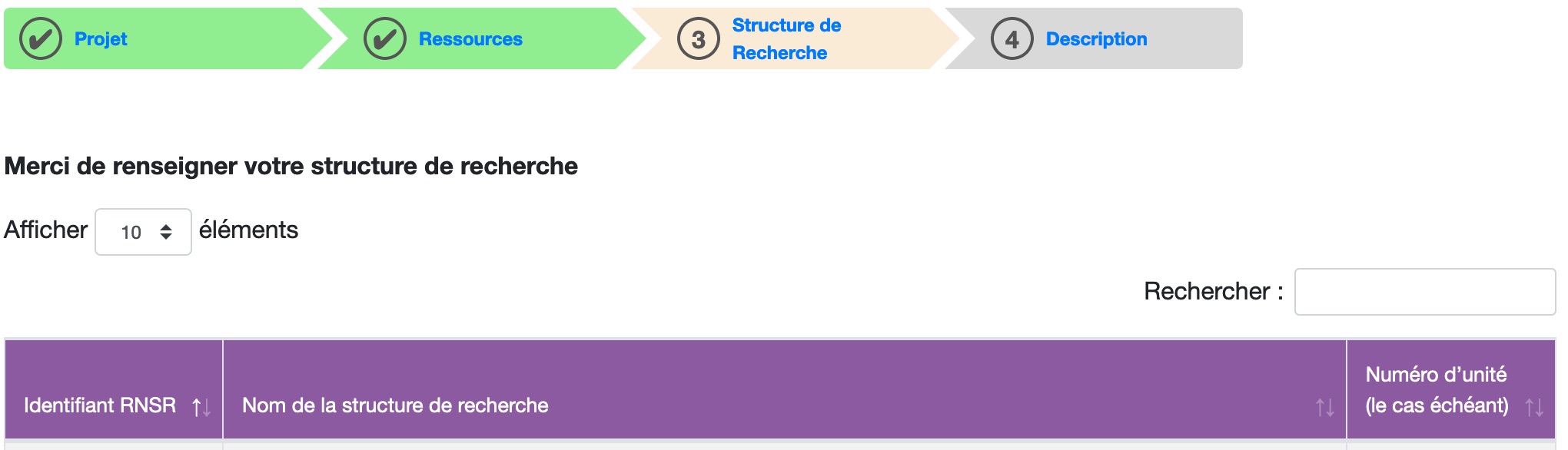
Enter the first letters of the name of your laboratory, organisation or research structure in the "Search" field. The proposed list uses the National Directory of Research Structures (RNSR), which references thousands of public and private research structures in France.
If a result is displayed and it matches your structure, click on it to display a summary page of the information concerning it. You can modify, if necessary, the postal and telephone contact details. If your structure director is found, they will also appear at the bottom of the page but without the possibility of modification.
If your structure is not in the file or if you are part of a company, use the blue "I cannot find my research structure" button at the bottom of the page, and you will be directed to a form to fill in to describe your structure.

Other (page 3)
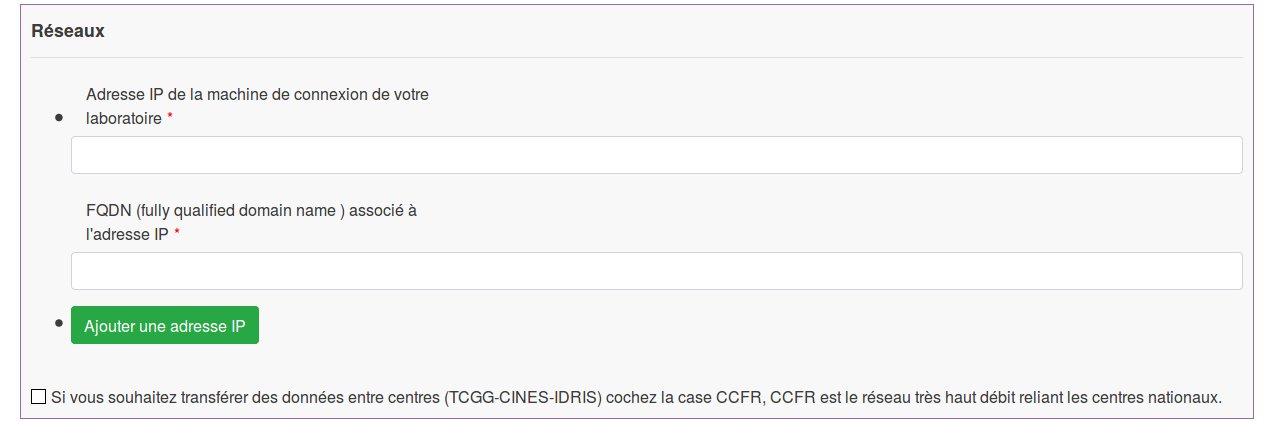
On this last page, you will need to indicate the IP address(es) of your connection machine(s) (machines from which you will access Jean Zay). You can add multiple addresses via the green "Add an IP address" button, but they must all be public, i.e. visible from machines outside your laboratory, and therefore not on a private network.
If you also have an account in one of the other national centres (CINES and/or TGCC), remember to check the "CCFR" box. You can then use this very high-speed network that connects the national centres to perform data transfers.
Then you must indicate the eight characters that will partly make up your future initial password. The other part, randomly generated by IDRIS, will be communicated to you after the finalisation of the creation of your computing account. For more information, you can consult our documentation concerning the initial password.
Finally, you must complete the section concerning your IT security officer. Note that you cannot be your own security officer. For CNRS - INRIA staff, this information is normally pre-filled. As these fields are mandatory, please complete any that are missing. If you are an industrial user or your research structure is unknown in the RNSR file, fill in all the fields.
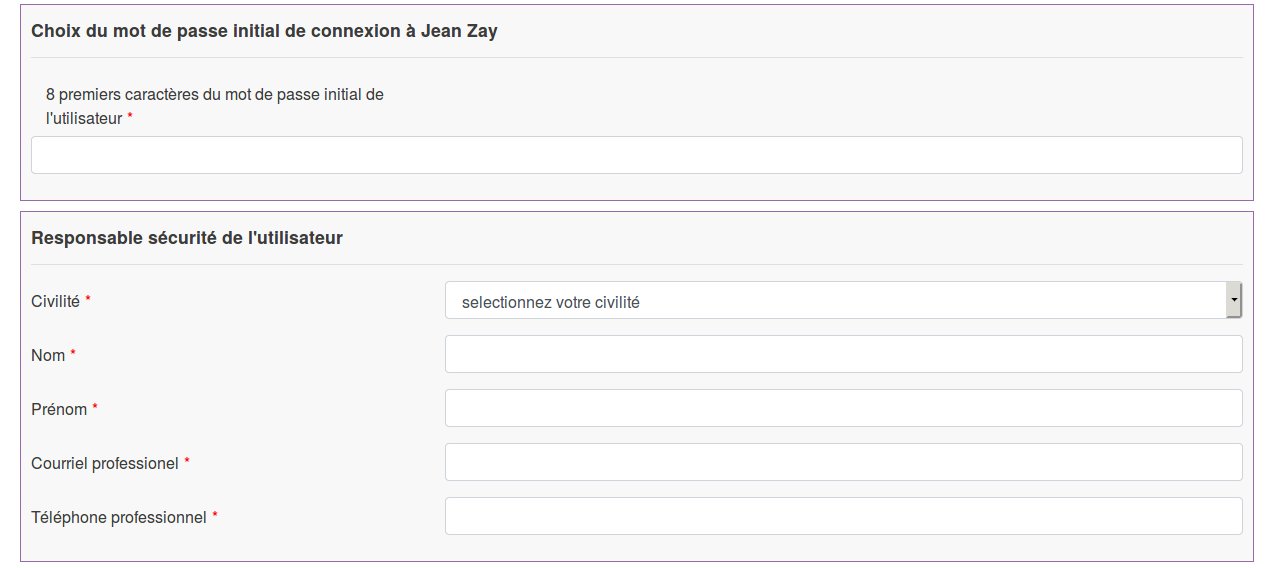
Then click on "Finish", which will take you to this page:
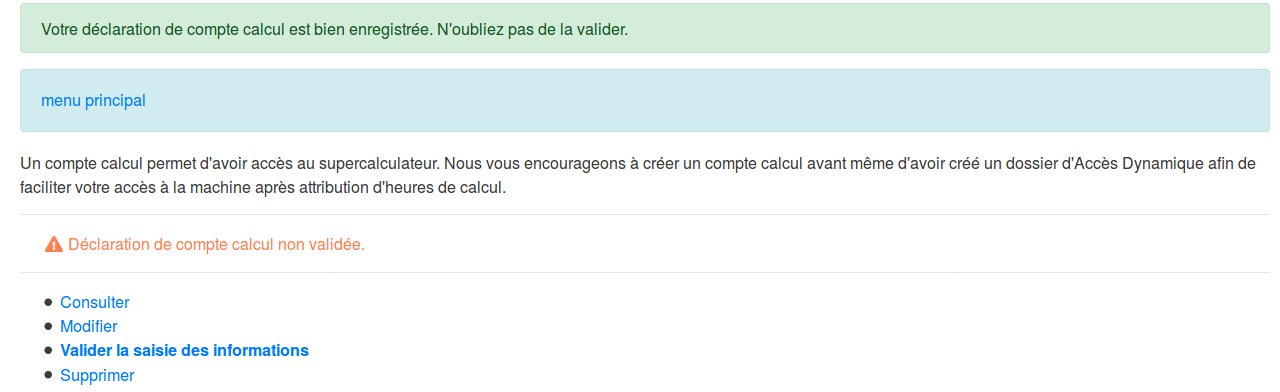
If you do not have any modifications to make, validate the account declaration with the "Validate the information entry" link.
Signing the documents
If you belong to the CNRS - INRIA identity federation, you no longer need to do anything on the eDARI portal: emails containing an authentication link will be sent to you, your structure director and your CSSI (IT security officer). By authenticating on the RENATER identity federation using the link contained in these emails, you, your structure director and your security contact will electronically sign the account declaration.
However, if you, your structure director and your security contact do not belong to the identity federation, you will need to manually sign your computing account declaration and possibly your structure director and your security contact. To do this, click on the "Access your eDARI account declaration" link:
On the next page, first click on the "Download the account declaration in PDF format" link to obtain the declaration as a file that you will need to print, sign and then scan.
Then click on the blue "Upload the signed computing account declaration" button to upload the scan of the signed account declaration to the website.

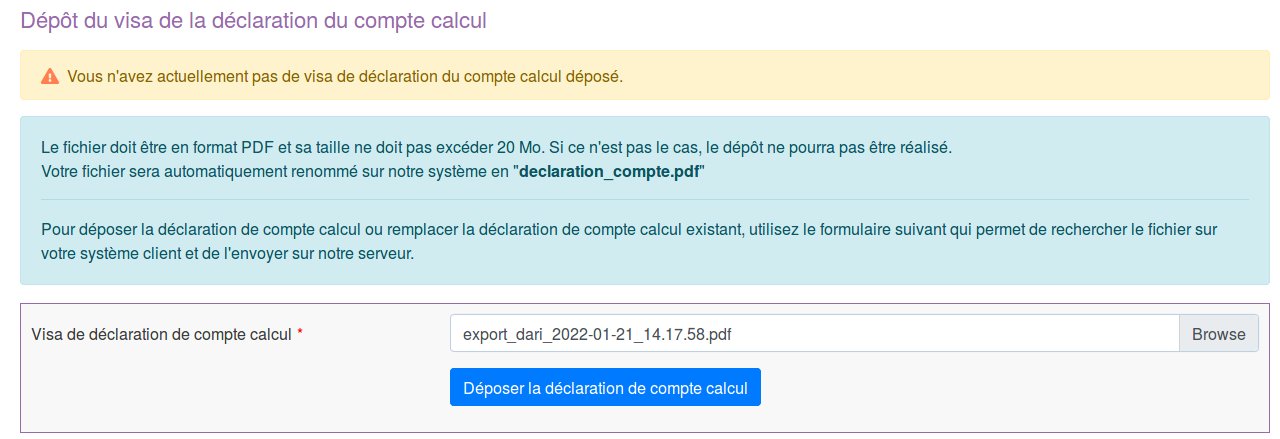
IDRIS will check for the presence of signatures on the computing account declaration before studying it.
A COMPUTING ACCOUNT IS STRICTLY PERSONAL.
Under no circumstances should you communicate your credentials to a third party.
By signing your account declaration (electronically or manually) you have agreed to comply with the following points:
"I certify that my use of IDRIS resources will be solely for the scientific projects declared to IDRIS in which I participate and will comply with the CNRS IT Charter, which I have read on the following page: « Charter for the use of IT resources and Internet services ».
I, the undersigned, undertake to protect my identifiers and the associated passwords that are transmitted to me personally and are neither transferable nor shareable and to report to IDRIS any use that appears fraudulent. I also accept that the data I produce on IDRIS resources with my computing account may be transferred to another computing account of the project or deleted at the request of my project manager or my director.
Opening a computing account on an IDRIS machine implies acceptance to receive information by email from the IDRIS management or the Communication team as part of the IDRIS Flash Info. Only the closure of this computing account will stop receiving these two types of communications."
FAQ and contacts
-
FAQ: do not hesitate to consult the eDari portal FAQ.
-
Contacts:
- For any problems related to the IDRIS computing account creation procedure, do not hesitate to contact us by email at gestutil@idris.fr.
- If you encounter a technical error related to the website, send an email to svp@cines.fr.