This page was translated by an AI (LLM) with a cursory human check and is awaiting full review.
The DARI website has evolved since this documentation was written, and some steps or screenshots may be outdated.
Renewal of a Dynamic Access
The duration of a Dynamic Access project is one year. At the end of this period, you can renew your file. If you have multiple files, you can renew all of them, or only some.
The eDARI portal will send you reminder emails two months, one month and one week before the end of the allocation period inviting you to renew your file.
If the renewal is accepted, the allocated hours will be available the day after the expiration of the previous project.
If your total resource request across the three national centres is below the thresholds (500,000 CPU hours and 50,000 normalised GPU hours), you will be redirected to a Dynamic Access (DA). If the request exceeds these thresholds, you will be redirected to a Regular Access (RA).
For more details on renewing a DA to an RA, click here.
Access to the file(s) to be renewed
When you are on the homepage of the eDARI portal, you must first log in via the link "Log in or create an eDARI account" (at the top right of the page):
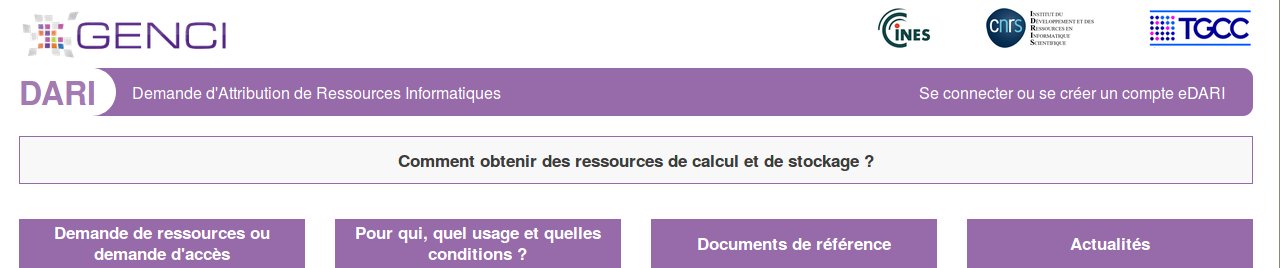
This opens a new page where you choose the type of connection desired ("Log in with an eDARI account" or "Log in via the Education-Research Federation").
Once logged in to the eDARI portal, you access the homepage of your personal space:
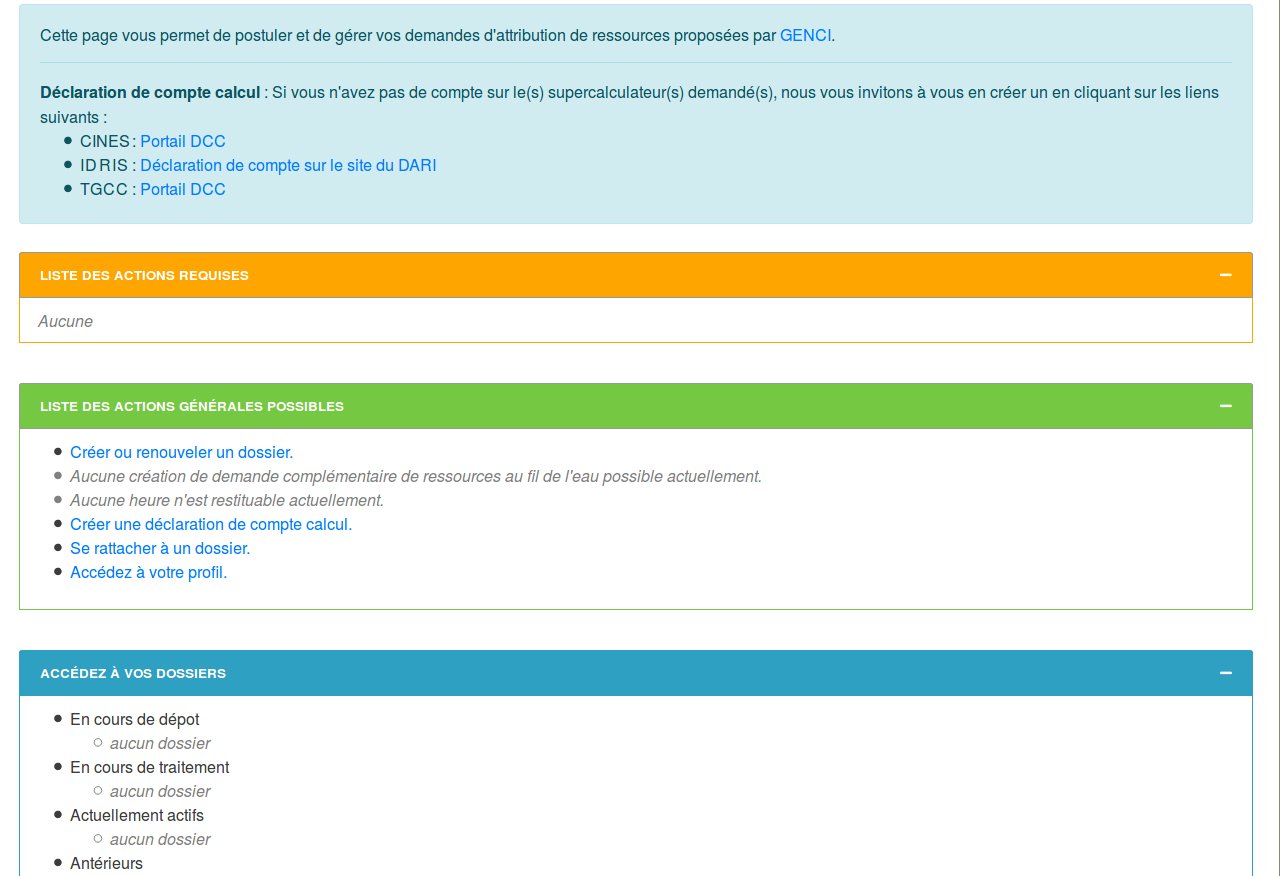
You then click on the link "Create or renew a file" in the green box "LIST OF GENERAL POSSIBLE ACTIONS". You will then get the list of files you can renew:
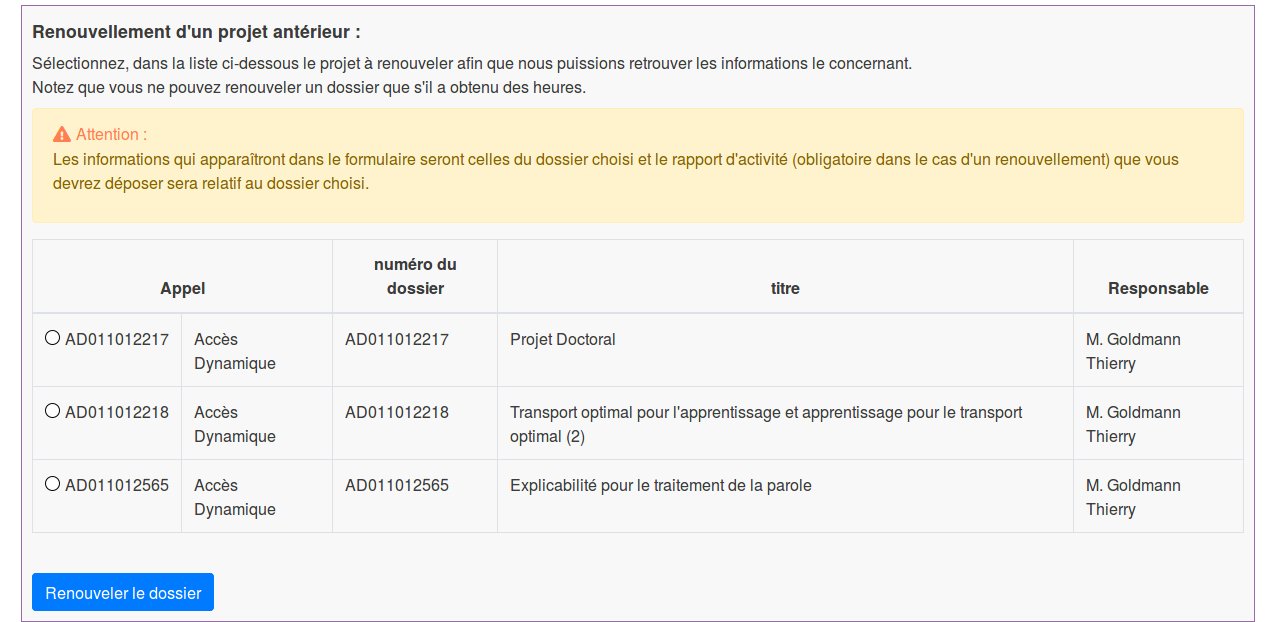
You tick the box next to the file number you want to renew and click on the blue button "Renew the file". This will take you to the first page of your Dynamic Access file to start the renewal after passing the page on personal data consent.
Entering the renewal
Project
If you do not need to make any changes regarding the project description, you can go directly to the hour request on page 2 without forgetting to tick the mandatory boxes.
Resources
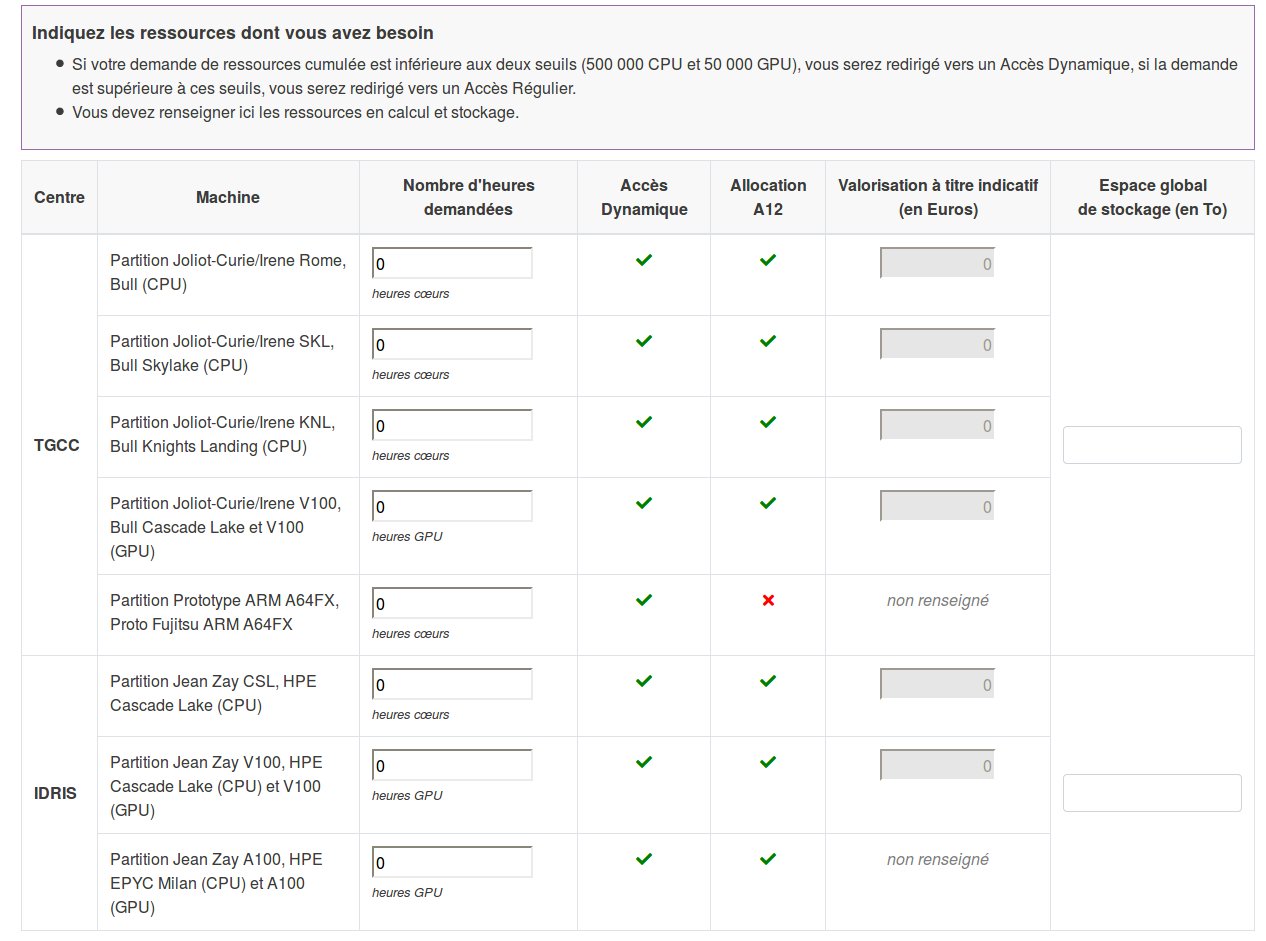
Note that the numbers of GPU and CPU hours as well as the amount of storage are reset to zero. New values must be entered regarding your consumption for the coming year. Then click on the blue button "Next".
Your previous hour allocation, possibly increased by on-the-fly requests during the project period, ends after one year. Unused hours are not carried over from one year to the next and are therefore not taken into account when renewing. Estimate the number of hours you need when renewing the file.
Research structure
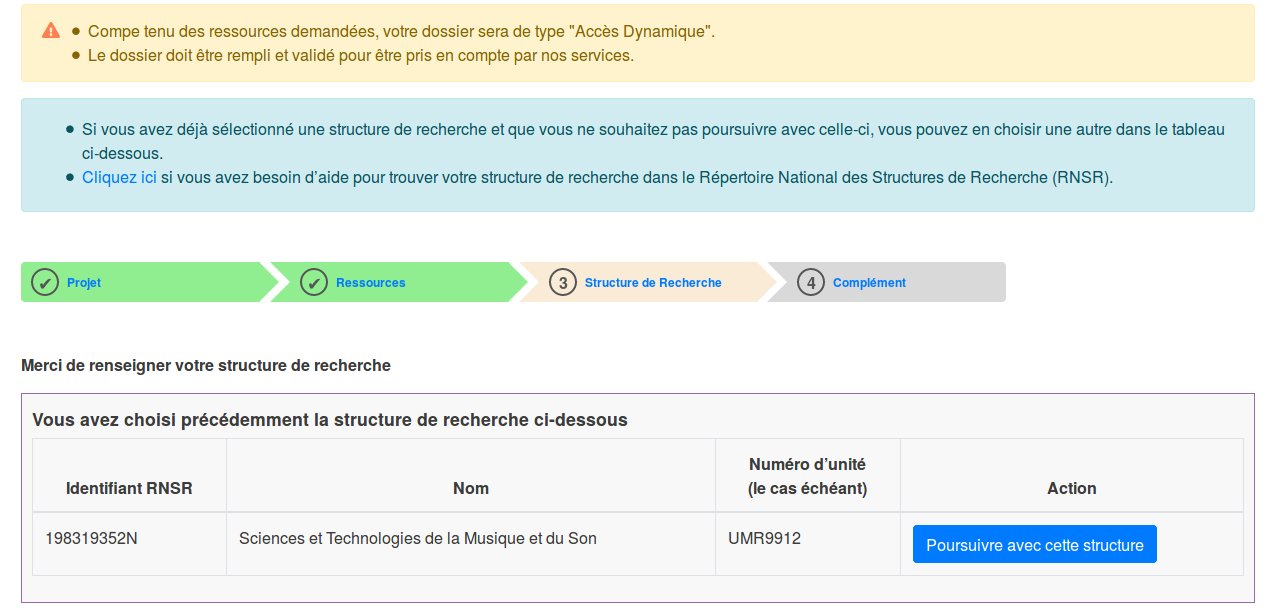
On page 3, the process indicates the research structure associated with your previous file and simply invites you to continue with this structure by clicking on the blue button "Continue with this structure" before clicking on the blue button "Next". If you have changed research structure, you can make the modification at this stage by indicating the new structure in the "Search" box.
Additional information
Finally, the last page "Additional information" will allow you to:
- change the number of resources (CPU or GPU) that you plan to use simultaneously;
- indicate if you have the possibility to migrate your applications and environments to one (or more) supercomputer(s) of another centre in case of very high demands on the chosen supercomputer;
- modify the file information concerning the use of resources during the project period (regular consumption of hours throughout the year or by period, etc).
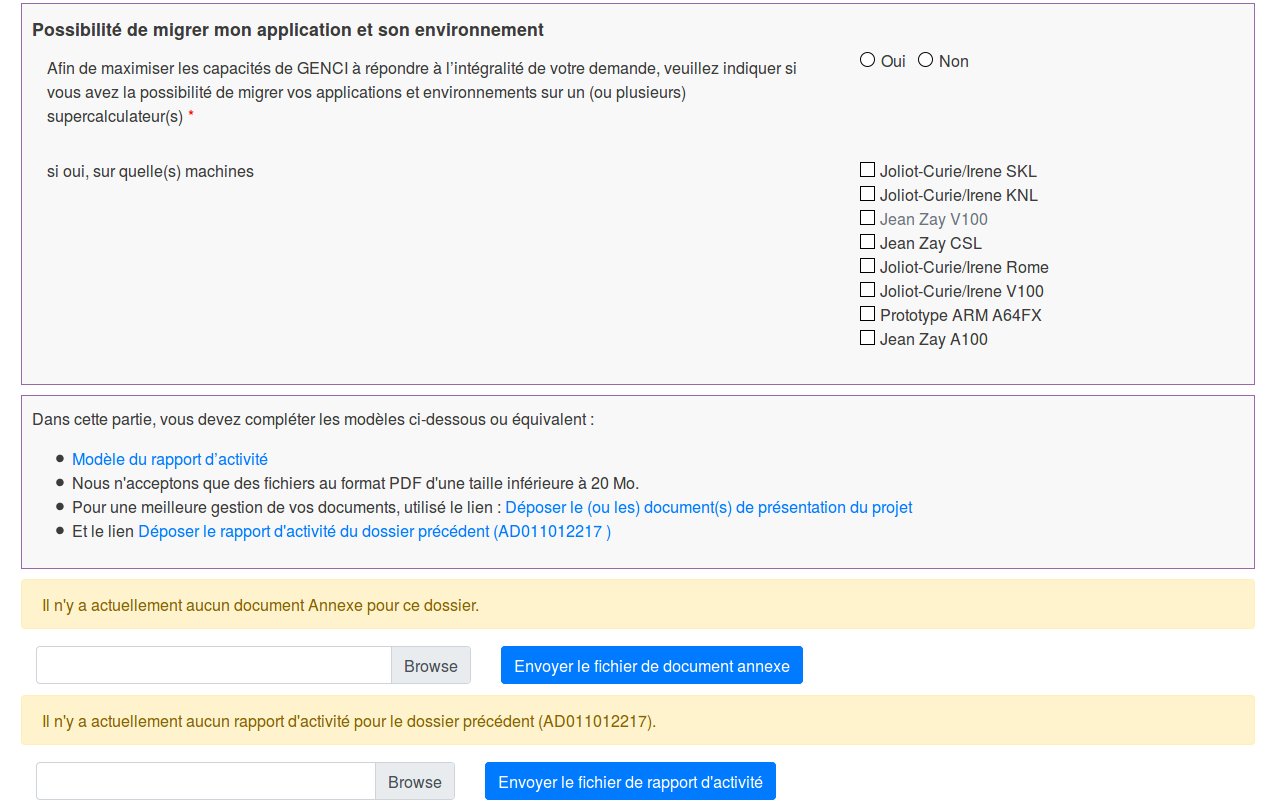
To validate your renewed file, you must submit an activity report (in PDF format) on the use of the hours from the previous project. On this same page you have a menu to submit this activity report but you can also do it later from your personal space.
If you click on "Finish", you will complete the entry of your renewal and return to your personal space.
Note that at this stage of the procedure, your file is not yet validated. Validation is mandatory for the request to be considered.
Final validation
At the top of your personal space, a dynamic banner confirms the entry of the information and the procedure to follow to complete the renewal of your file.

To definitively validate your allocation request, click on the temporary file number TMPXXXXX in the orange box "LIST OF REQUIRED ACTIONS". This will open the following action menu:
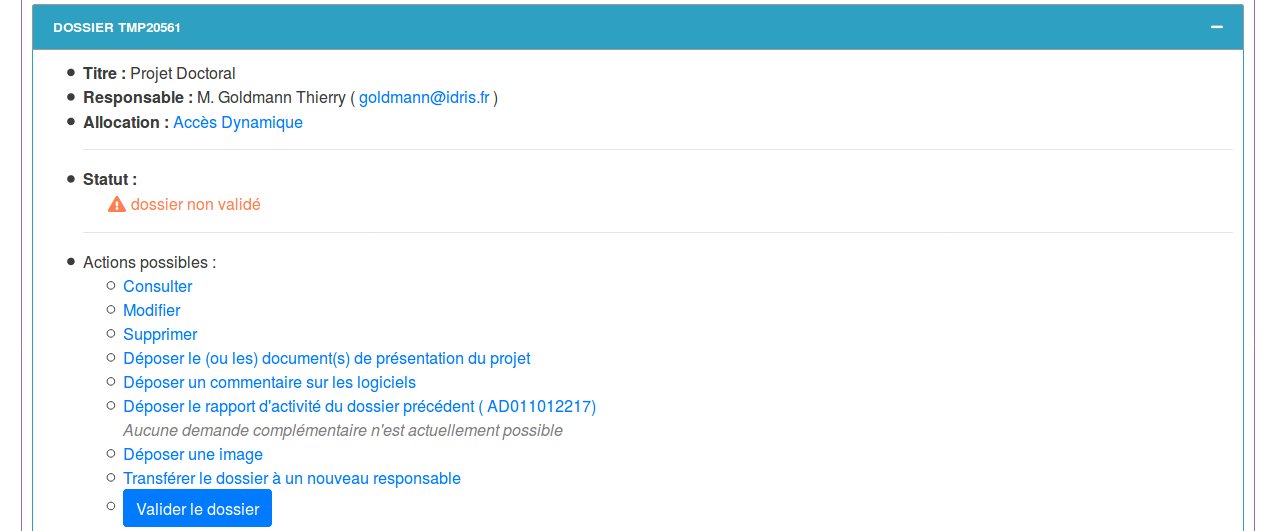
If you have submitted the activity report on the previous page, simply click on the blue button "Validate the file" otherwise you have a link "Submit the activity report of the previous file (ADxxxxxxxxx)".

You will then find the final number of your file in the third light green box.
Attention:
-
The first two light green boxes will only appear if your structure director and yourself are part of the Education-Research Identity Federation (FER). You and your director will then receive an email containing a link that you must click to authenticate (this dispenses with manual signature) and finalise the procedure. Without this validation/signature, your file WILL NOT BE REVIEWED.
-
Otherwise, if your director and/or yourself are not part of the identity federation, only the last light green box indicating the dynamic access file number will appear.
In this case, you will see in the orange box "LIST OF REQUIRED ACTIONS" the mention "For your resource request to be considered, you must submit the signed endorsement on the site for the file below:" and on the next line the clickable file number with, in brackets, the precision "Dynamic Access" or "Allocation A..." (regular access):

By clicking on this number, a page will dynamically appear in a blue box at the bottom of your personal space with a summary of the status of your file indicating the date on which you validated the file and that the endorsement has not been validated by the IDRIS:
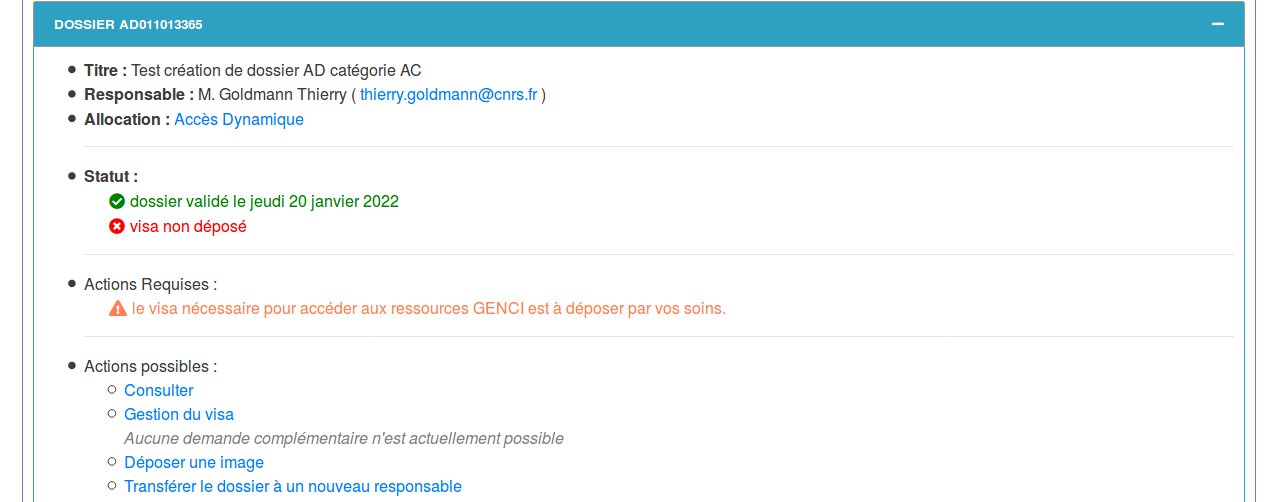
Then click on the link "Endorsement Management" and then on the link "Download the endorsement in PDF format" which you will print, sign manually and possibly have signed manually by your structure director if this is indicated in the endorsement. Then scan the signed endorsement to have a digital version in PDF format.
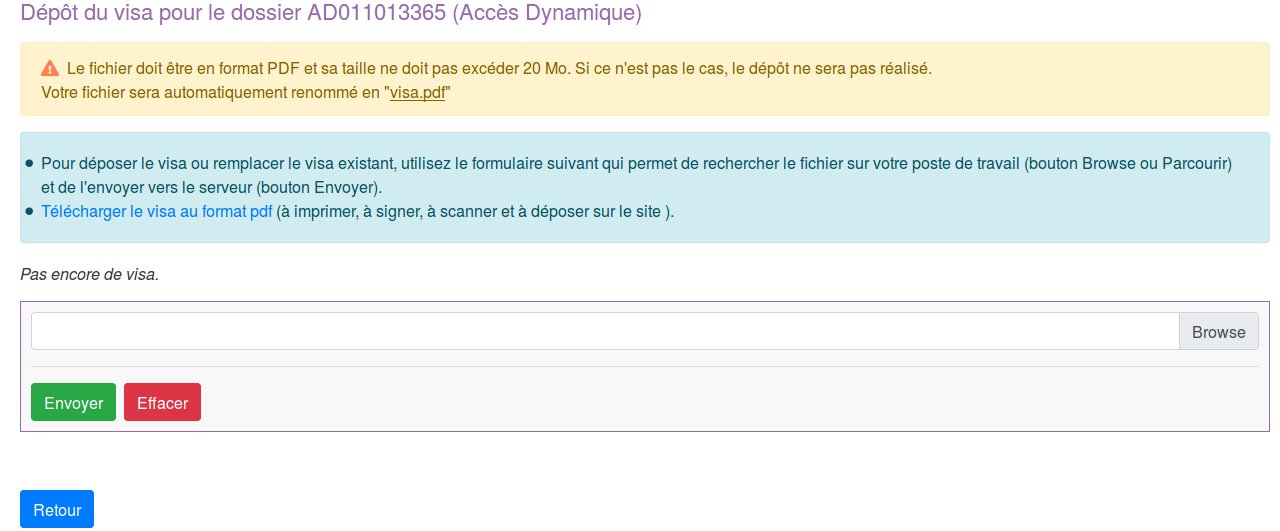
Submit the endorsement in PDF format using the dialogue window with the "Browse" button. Without submitting this signed endorsement, your file WILL NOT BE REVIEWED by the IDRIS management. Once the endorsement is submitted, you will have the following information:
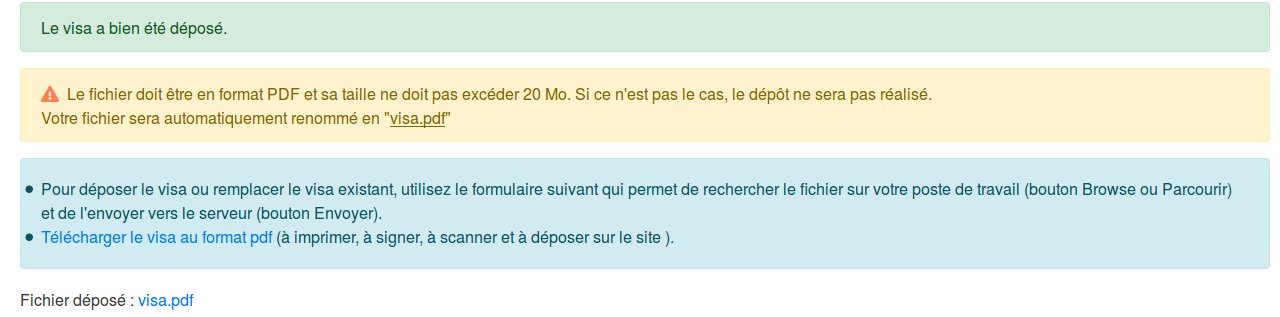
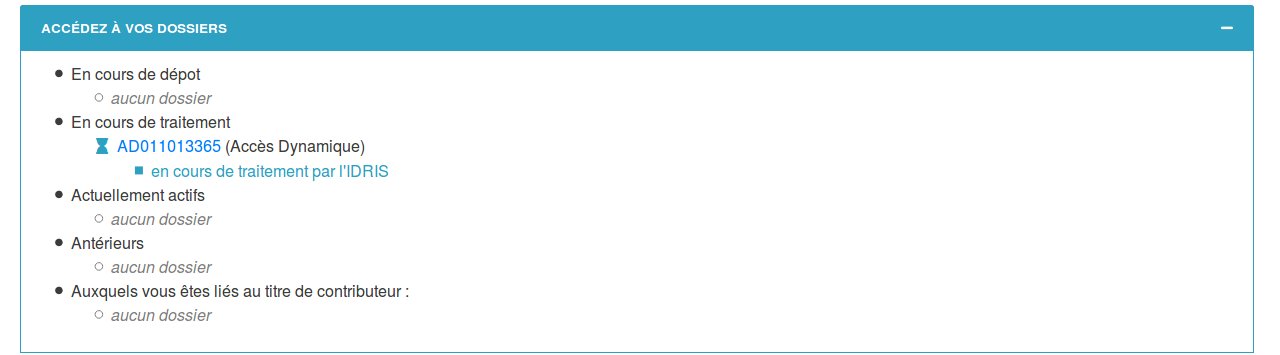
And higher up in your personal space, the mention that you have no further action to take on your side:

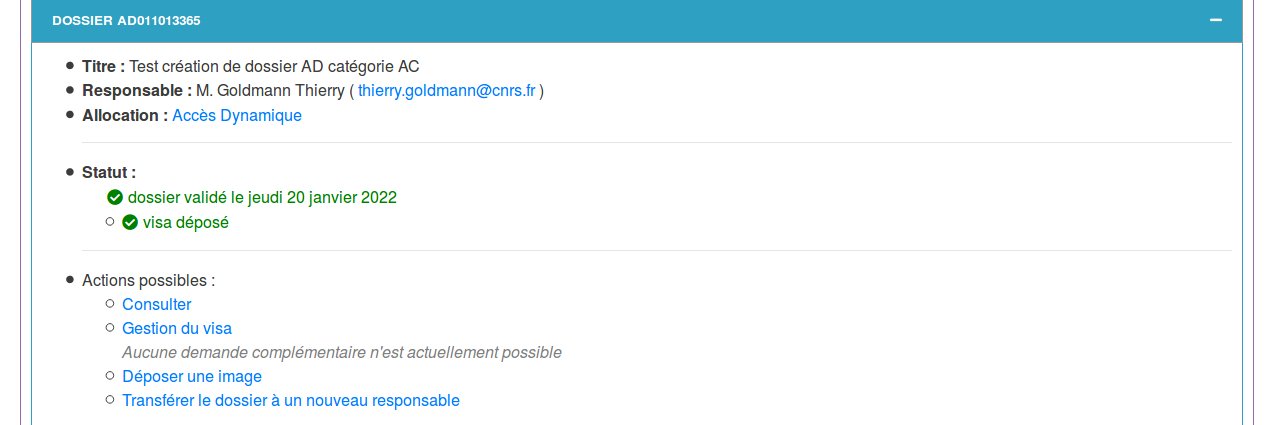
If you click on your file number at the bottom of your personal space:
You will have confirmation that the endorsement is indeed submitted for your request for computing hours.
The IDRIS will then verify that the signatures are present and if so, will accept this endorsement. This will trigger the review procedure by the centre's management.
We remind you that in case of a renewal accepted by the IDRIS management, the new hour allocation will start the day after the expiration of the DA project. But if the expiration of the DA project occurs on a public holiday or during the weekend, the new allocation will only be available from the first working day following.
FAQ and contacts
-
FAQ: do not hesitate to consult the FAQ of the eDari portal.
-
Contacts:
- For any problem related to the IDRIS computing account creation procedure, do not hesitate to contact us by email at gestutil@idris.fr.
- If you encounter a technical error related to the website operation, send an email to the email address svp@cines.fr.